Importing חשבשבת backups: many companies at once
Back up all the companies in חשבשבת, upload the .BAK files to DocMe, and on one screen load each company's accounts, sort codes and past entries as approved history.
How to move a whole office from חשבשבת to DocMe in one go: back up all the companies, upload the backup files, and load every company's accounts, sort codes and past entries from a single screen.
The process at a glance
- In חשבשבת, back up all the companies. You get one .BAK file for each company.
- In DocMe, upload all the .BAK files together.
- Review the companies on one screen, choose the years and the customers, and click Import.
The past entries arrive as approved history, already in the archive. You don't need to approve them one by one, and they never reach the export queue.
חשבשבת only has a Hebrew interface, so its labels below are in Hebrew, with a translation in brackets.
Open the backup screen in חשבשבת
- Open חשבשבת. It doesn't matter which company is open.
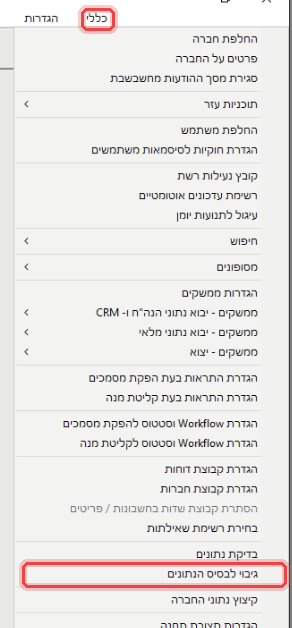
- In the top menu click כללי (General).
- Click גיבוי לבסיס הנתונים (backup to the database).
Back up all the companies
The גיבויים (backups) screen opens. The numbers in the picture match the steps:
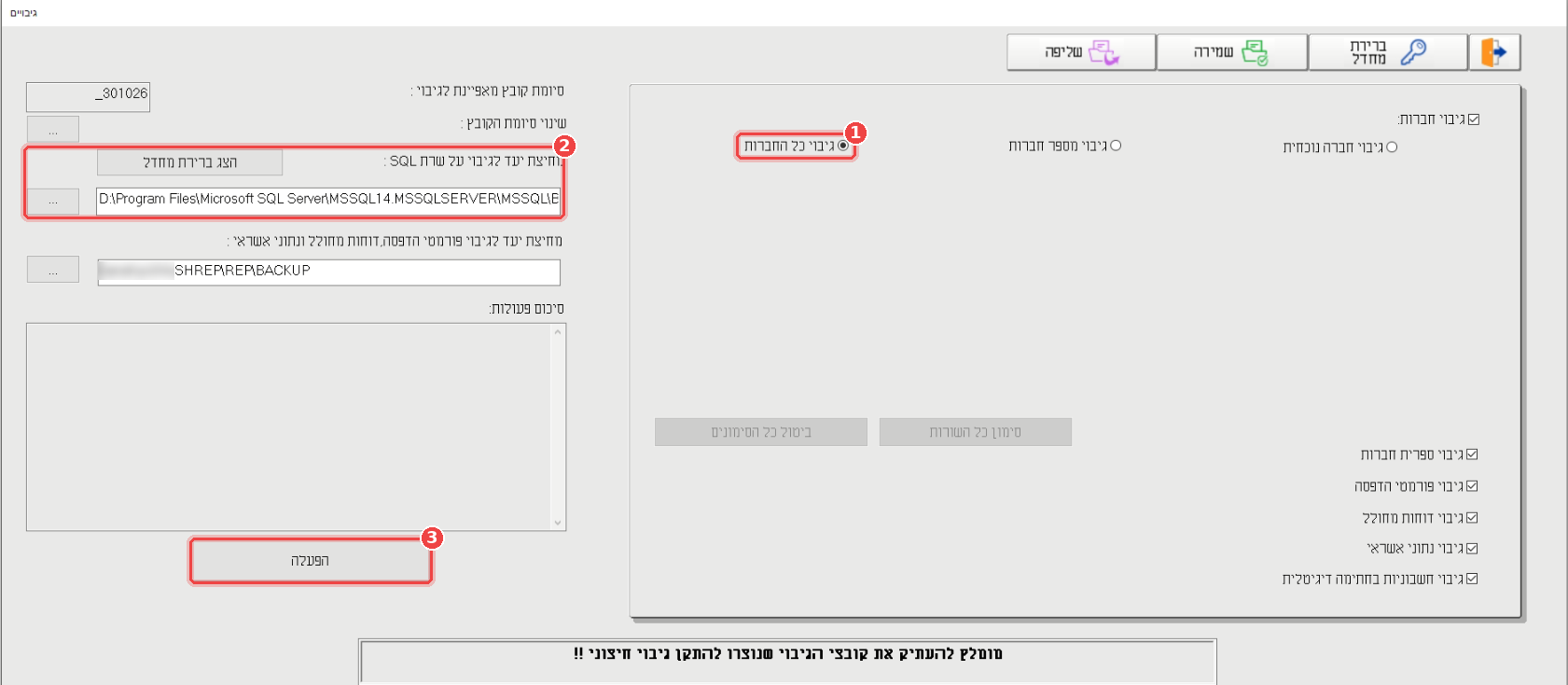
- Under גיבוי חברות (back up companies), choose גיבוי כל החברות (back up all the companies). To take only some of them, choose גיבוי מספר חברות (back up several companies) and mark them in the list.
- Check the folder under מחיצת יעד לגיבוי על שרת SQL (target folder on the SQL server). This is where the .BAK files will be saved. If you aren't sure, click הצג ברירת מחדל (show default) and חשבשבת fills it in.
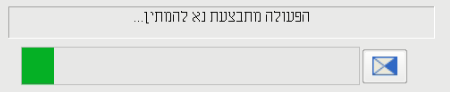
- Click הפעלה (run) and wait. A progress bar shows the backup running, and with many companies it can take a while.
When it finishes, סיכום פעולות (summary of actions) lists what was done:
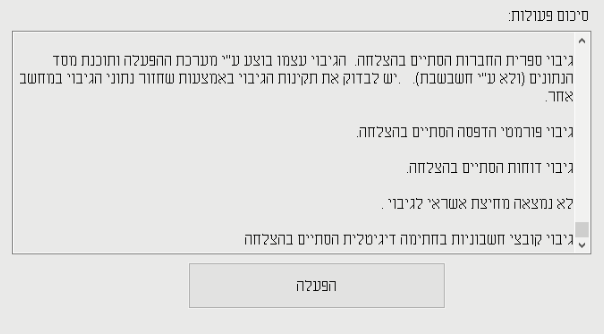
- הסתיים בהצלחה (finished successfully) next to each item means you are done.
- לא נמצאה מחיצת אשראי לגיבוי (no credit folder found for backup) doesn't affect the import. DocMe doesn't use credit card data.
Some fields on this screen don't matter for DocMe:
- סיומת קובץ מאפיינת לגיבוי (backup file suffix) is added to the file name. By default it is today's date, so
_301026gives a file likeHashDemo_301026.BAK. Leave it as it is, so each day's backup gets its own file. - The folder for print formats and reports, and the check boxes for backing up the company folder, print formats, reports, credit data and digitally signed invoices, are the office's own backup. DocMe only needs the .BAK files.
If the backup stops with an error
This message means that חשבשבת can't save to the folder you chose:
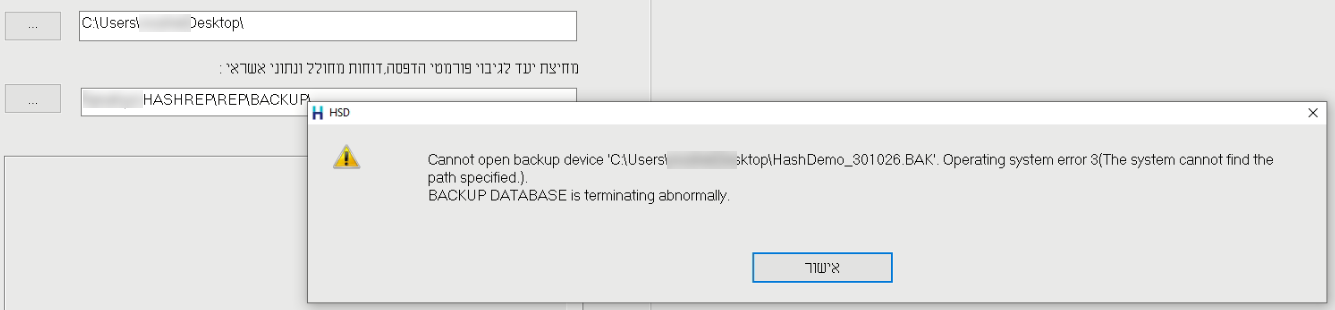
The backup is written by the SQL Server, so the folder must exist on the computer that runs the SQL Server. A folder on your own desktop usually won't work.
- Click אישור (OK).
- Click הצג ברירת מחדל (show default) to bring back the SQL Server's folder.
- Click הפעלה (run) again, and copy the files from that folder when it finishes.
Collect the .BAK files
- Open the backup folder on the computer that runs the SQL Server.
- Copy all the files ending in .BAK to the computer you use for DocMe, or to a network folder you can reach from it.
- You'll see one file for each company. The file name comes from the company's database name in חשבשבת, not from the company's name.
- A file called WIZCOMP also appears. It isn't a company. You can upload it with the others, and DocMe skips it by itself.
- These files hold the companies' full accounting data, so keep them somewhere safe and delete temporary copies when you are done.
Upload the files to DocMe
You don't need to choose a customer first. Each company in the backups is matched to its customer on the review screen.
- In the sidebar, open Import.
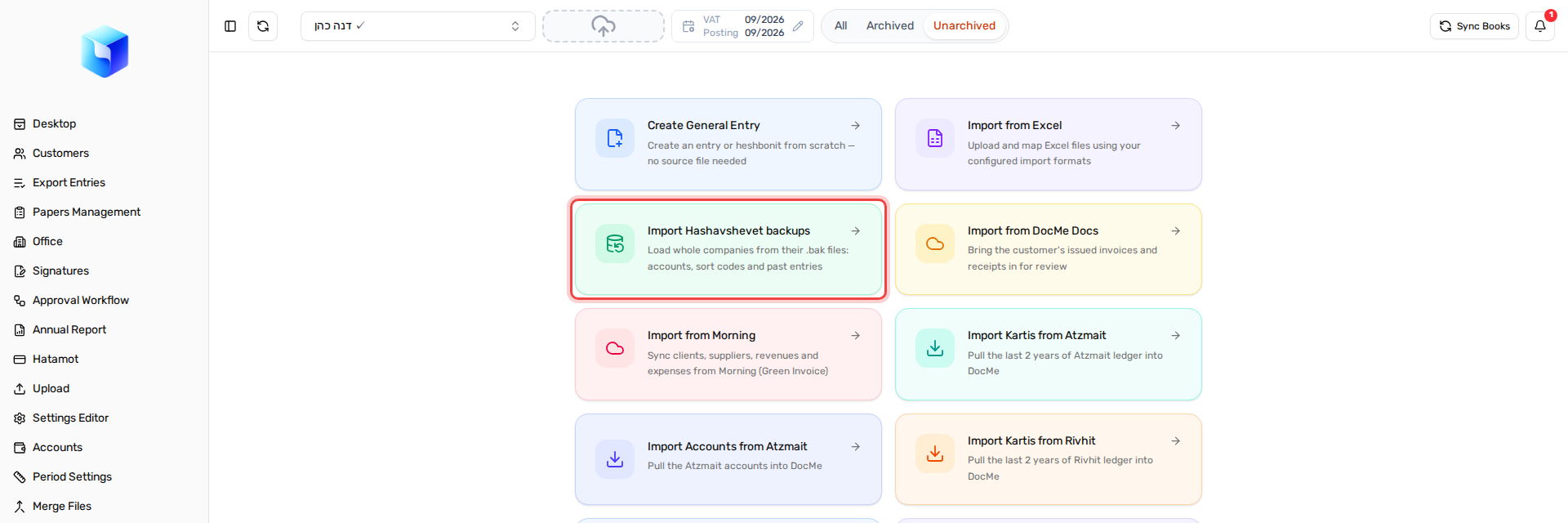
- Click the Import Hashavshevet backups card.
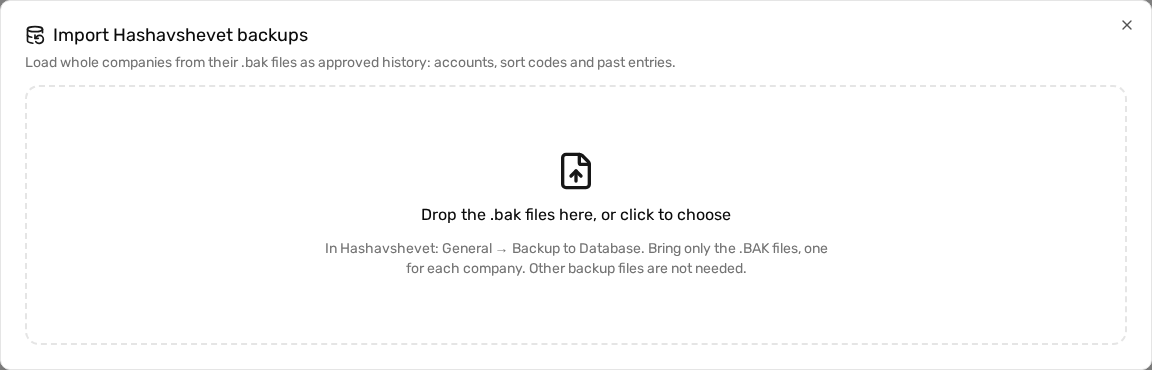
- Drag all the .BAK files into the frame, or click the frame and select them. In the selection window, Ctrl+A selects every file in the folder.
Uploading backups… shows the progress. Keep the page open until the upload ends, because an upload that stops can't be continued and has to start again.
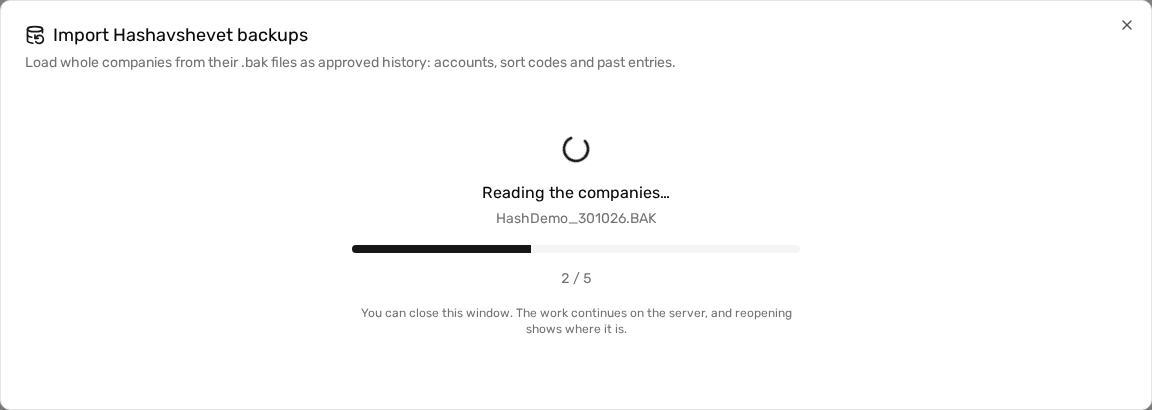
Next comes Reading the companies…. This part runs on the server, so you can close the window and reopen it later in the same browser to see where it is.
- Files that don't end in .bak are ignored.
- A file DocMe can't read appears in red on the review screen, with the reason, and the other files carry on. A compressed or encrypted backup is refused: back up again without compression and encryption.
Review the companies
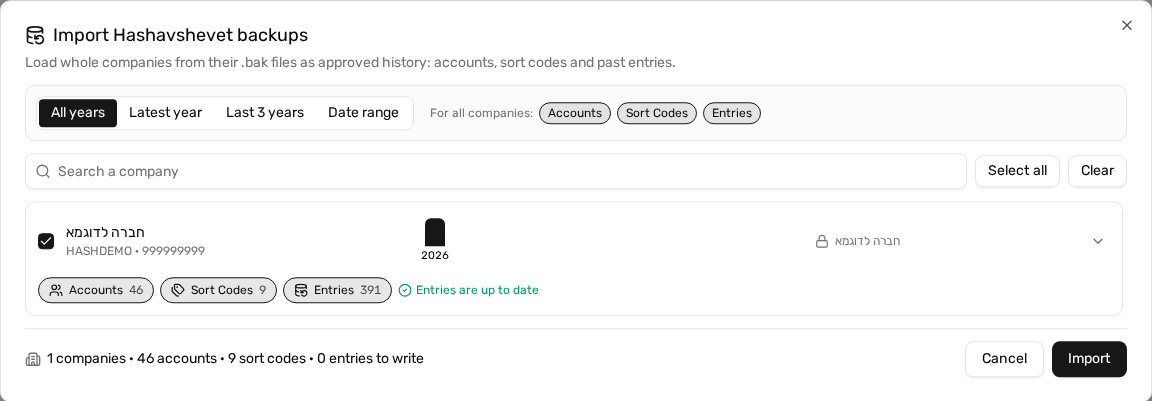
Every company gets a row. By default everything is selected, so you can click Import right away, or adjust what you need first.
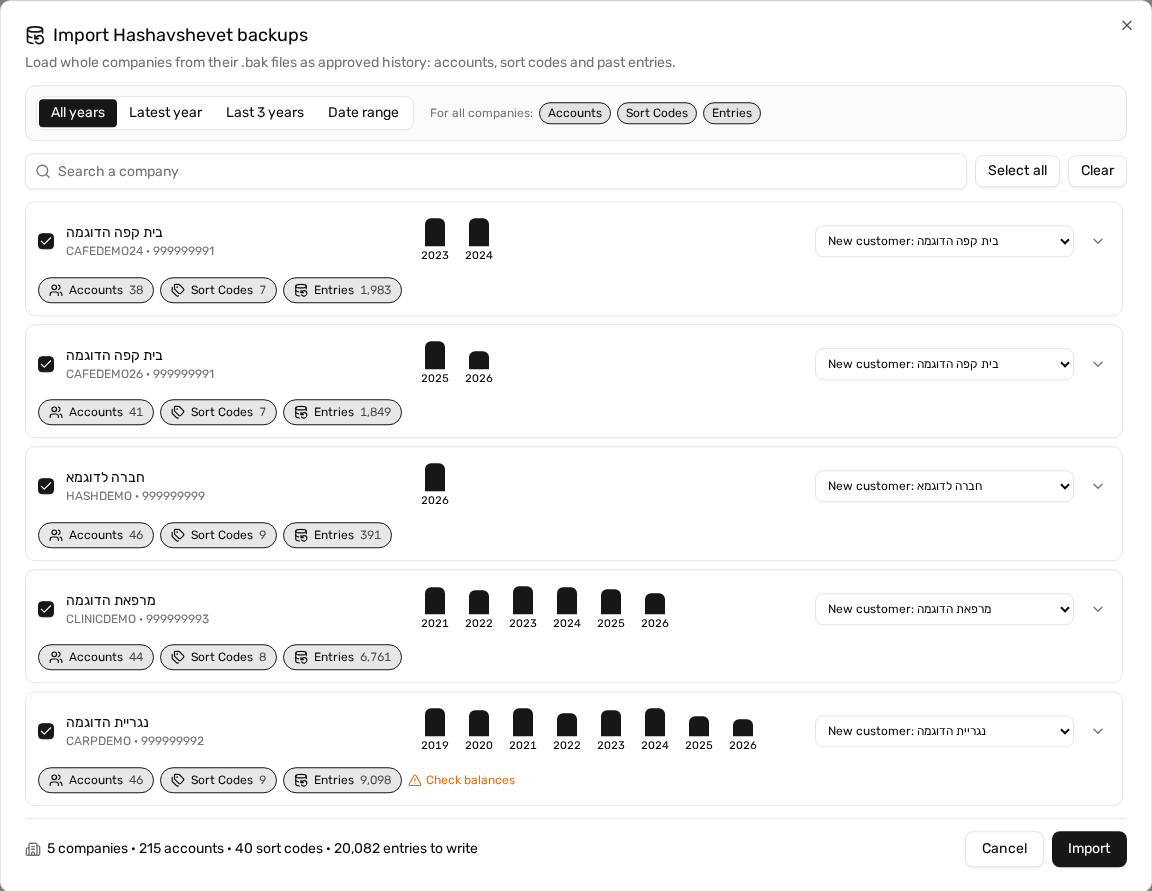
In each row:
- The check box includes or leaves out the company. Select all and Clear do this for the whole list, and Search a company finds one by name, database or business ID.
- Below the name are the database name and the business ID.
- The bars show the entries in each year. Click a year to include or leave it out for that company.
- Accounts, Sort Codes and Entries turn each kind of data on or off for that company, and For all companies: does the same for the whole list.
- The line at the bottom adds up what will be written.
Choose the years
The buttons at the top apply to all the companies together: All years, Latest year, Last 3 years or Date range.
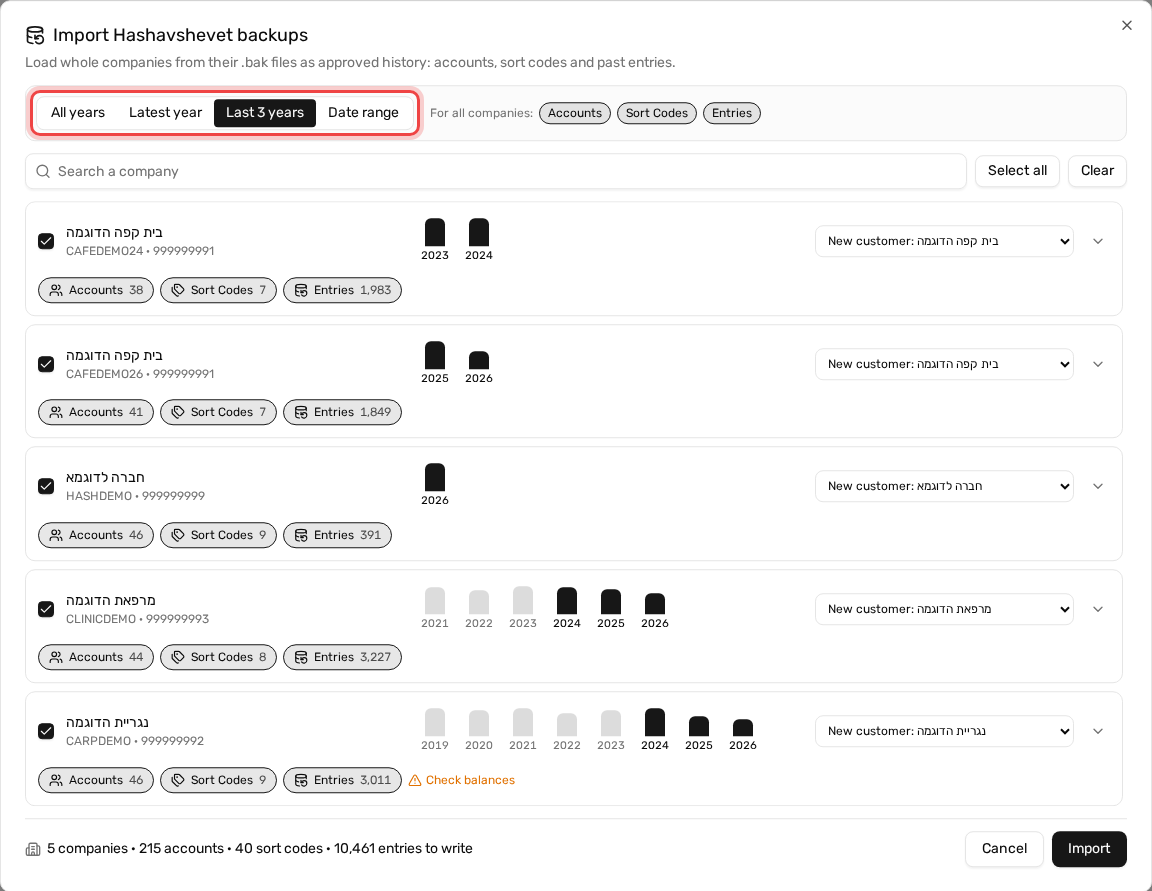
Years that are left out turn pale. After choosing a button you can still click single years in any row.
Choose the customer for each company
The list in each row says where the company will go. DocMe suggests a customer in this order:
- The customer that received this company in an earlier import. It is then locked and can't be changed.
- An existing customer with the same business ID.
- An existing customer with exactly the same name.
- Otherwise New customer, which DocMe creates during the import.
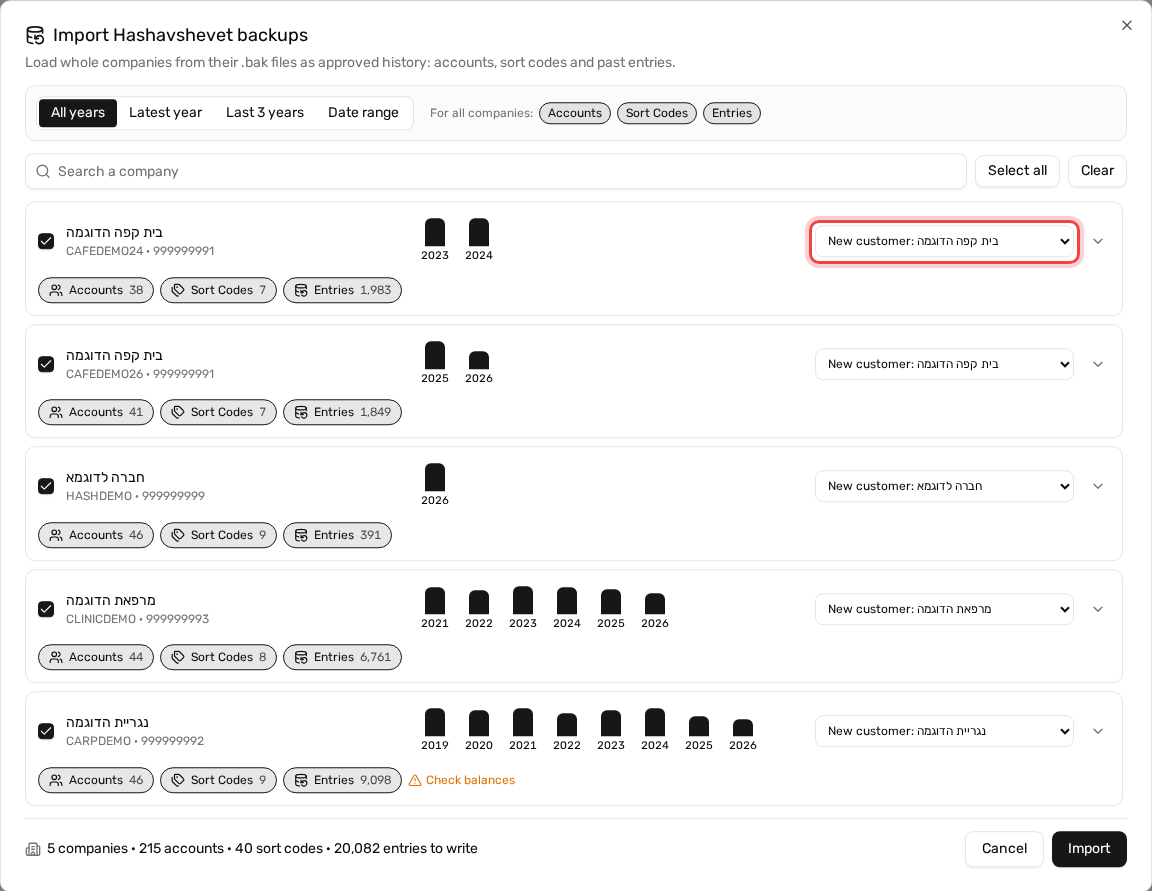
- You can choose any other customer from the list.
- Backups of one business from different years are grouped automatically. In the picture, both בית קפה הדוגמה backups share one business ID, so they go to the same new customer.
- A new customer can't log in yet. Their login works once the office sets a password.
Check the details of a company
Click the arrow at the end of a row to open its details.
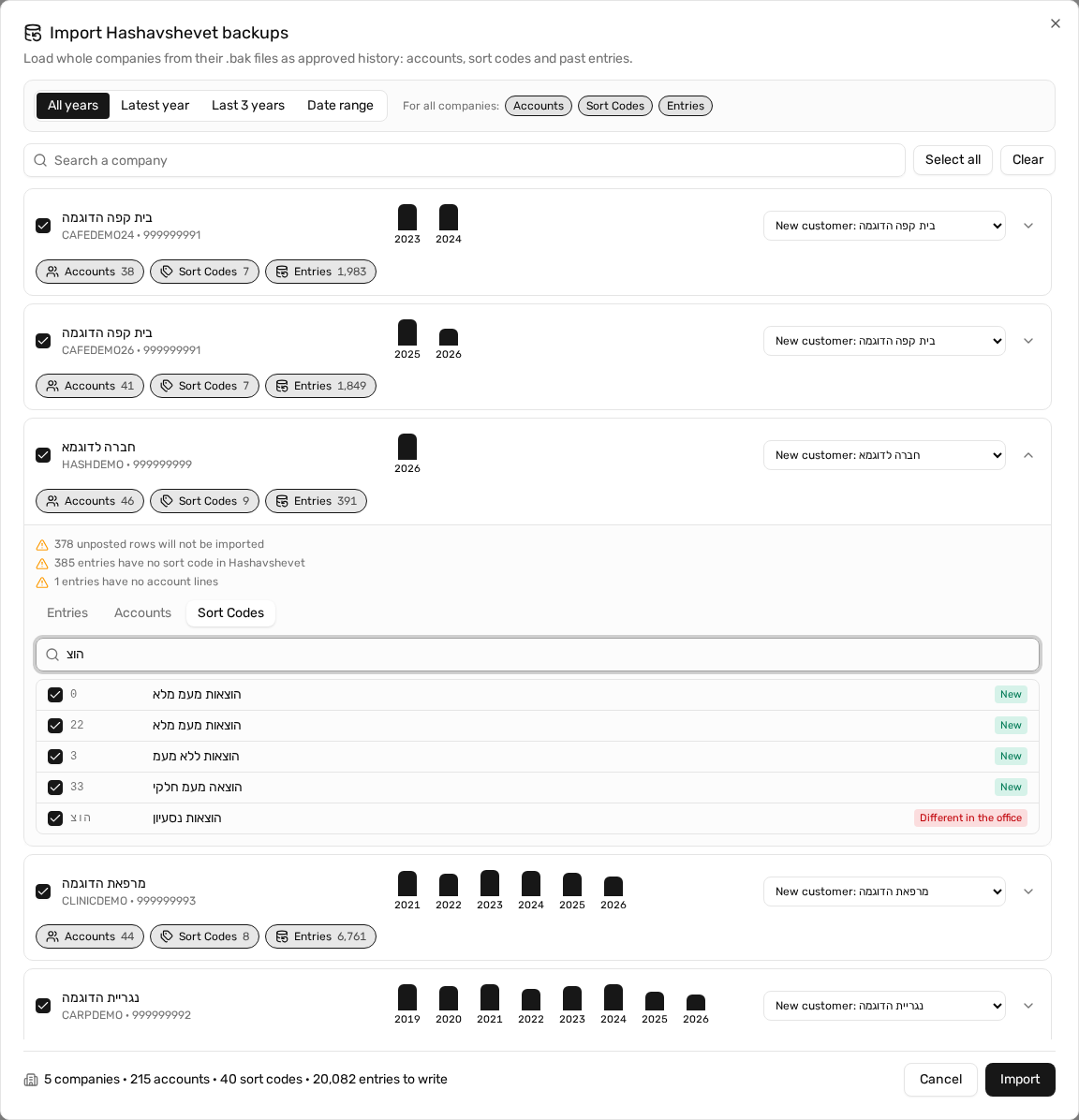
The notes at the top say what won't arrive or may need attention:
- Unposted rows and opening-balance rows aren't imported.
- Entries with no sort code are imported as usual. The Autonomy agent learns only from entries that have a sort code, so it won't use these.
- Check balances appears in the row when an account's stored balance differs from its posted lines in the backup. Compare that company with a trial balance in חשבשבת.
The tabs let you look closer:
- Entries shows the latest rows of each year.
- Accounts and Sort Codes have a check box for each row, so you can leave some out, and a search box.
Run the import and read the results
- Check the summary line at the bottom.
- Click Import. The work runs on the server, so you can close the window and come back.
- When it ends, you see a line for each company.
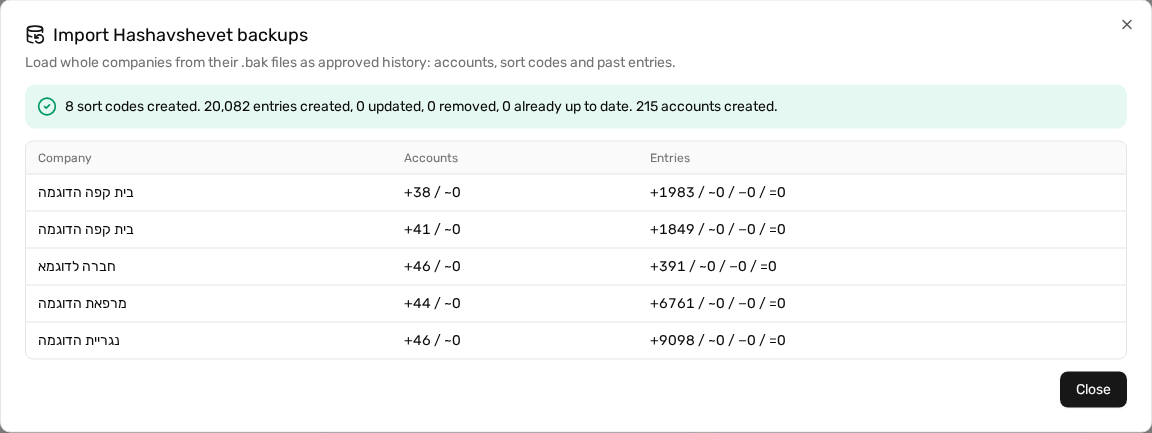
The numbers in the table mean: + created, ~ updated, − removed, = unchanged. A company that failed shows its error on its own line, and the others are still imported.
Click Close when you are done. Cancel on the review screen deletes the uploaded files without importing anything.
Where the data is now
Choose the customer in the customer picker and look at the Archived tab on the desktop. Each month of history is one document, already marked Entry Approved.

Click Entry Details to see all of that month's entries, one under the other.
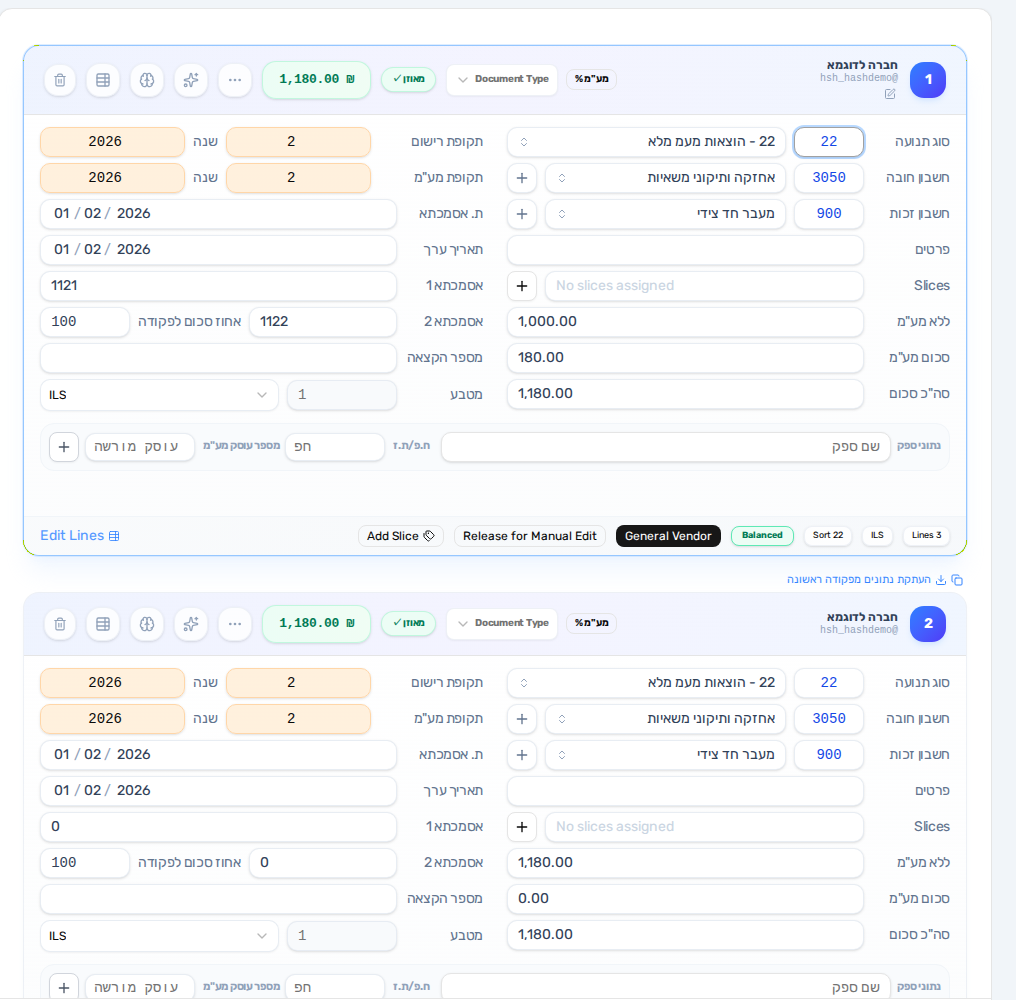
- There's nothing to approve, and the entries aren't sent to the bookkeeping software again.
- These documents hold entries only, with no scanned page, so the page preview next to them stays empty. The customer's real documents keep working as usual.
- The customer's accounts are ready in Accounts, and the sort codes in Settings Editor.
Importing a newer backup of the same company
You can upload a newer backup at any time, even with a different file name. DocMe recognizes the company by its database and compares entry by entry:
- New entries are added, changed ones are updated, and entries that are gone from the backup are removed, in the months you chose.
- Entries that haven't changed aren't touched. When there is nothing new, the row says Entries are up to date.
- The customer is locked to the one from the first import.