
Payment links and manual card payments
Taking card payments in DocMe Docs: switch the service on, send the customer a payment link or type the card over the phone, and the tax invoice receipt issues and sends itself.
How to take card payments in DocMe Docs, without a card terminal: send the customer a link, or type the card yourself while they are on the phone. Either way, the receipt issues itself.
The pictures come from the video and show the Hebrew interface. The labels below are the ones you see in English.
Two ways to take a card
- Payment link: you send a link and the customer types their card on a payment page. Use it when the customer pays in their own time.
- Manual payment: the customer reads the card out over the phone and you type it. Use it when they want to pay now, on the call.
Both use the same payment terminal and appear in the same list, and both issue the same document. The card goes straight to the payment provider, so it never reaches DocMe's servers.
Switch on card payments
Card payments are switched on per account, after approval.
- In the side menu, under Card payments, click Payment links.
- Read the terms on the screen: the fee for Israeli cards, the fee for foreign and tourist cards, and the largest single payment.
- Click Request access.
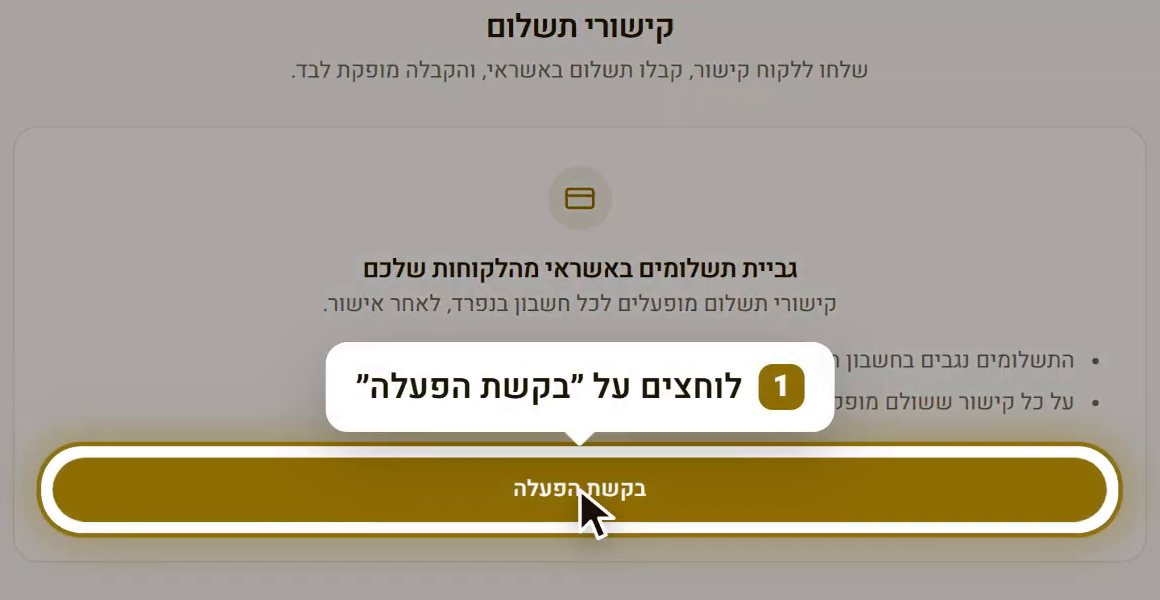
The button changes to Request received - pending approval. Once your account is approved, the same screen shows your payment links. Manual payment opens with the same approval.
Create a payment link
- On the Payment links screen, click New payment link.
- Under Customer, choose the customer. If they don't exist yet, see Add a new customer.
- Type the Amount (₪, including VAT). The most you can ask for in one payment appears under the field.
- Under What is it for?, write a short description. The customer sees it, and it is printed on the receipt.
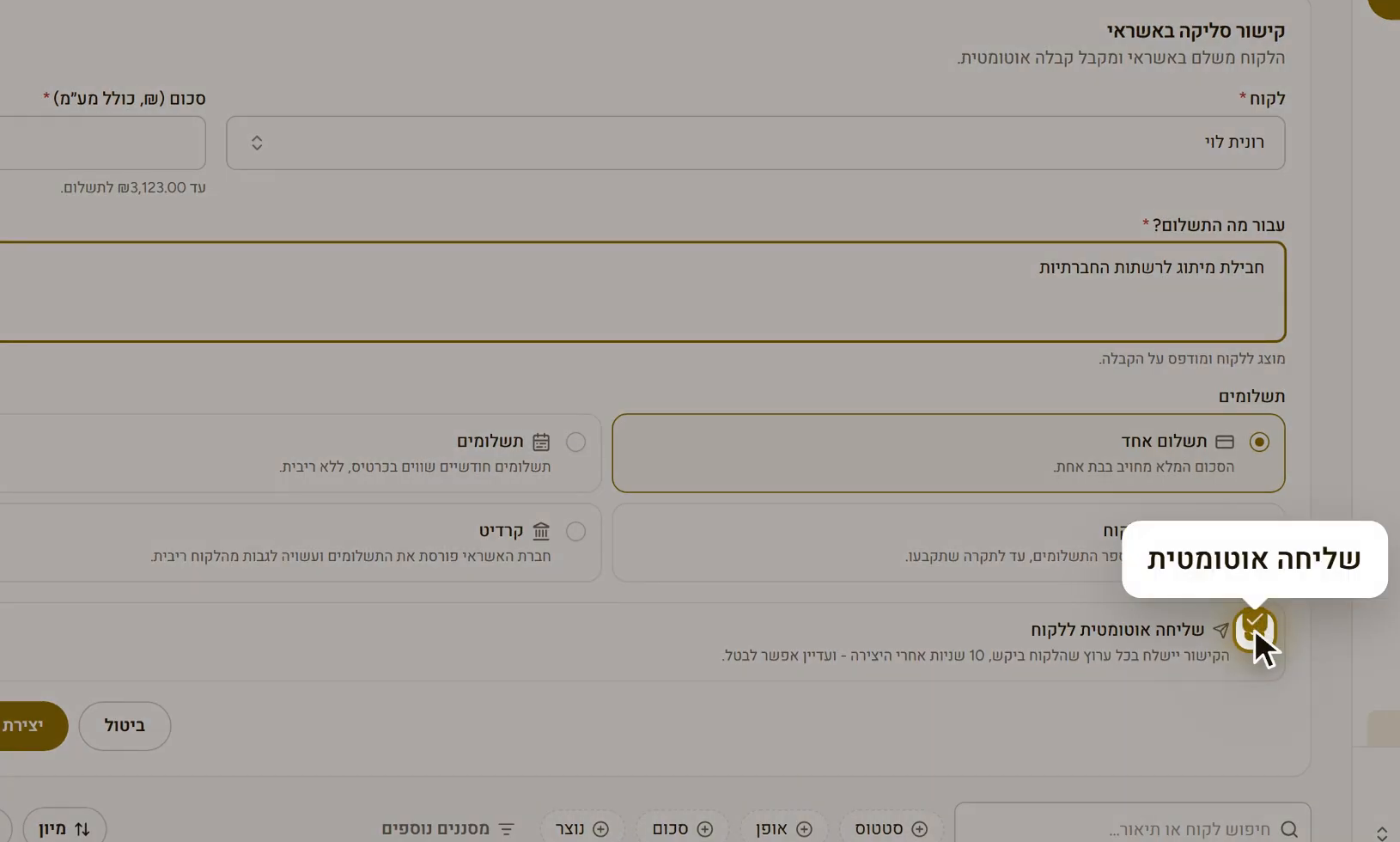
- Under Payments, keep One payment or choose another option. See Installments and credit.
- Check Send to the customer automatically. See How the link reaches the customer.
- Click Create link.
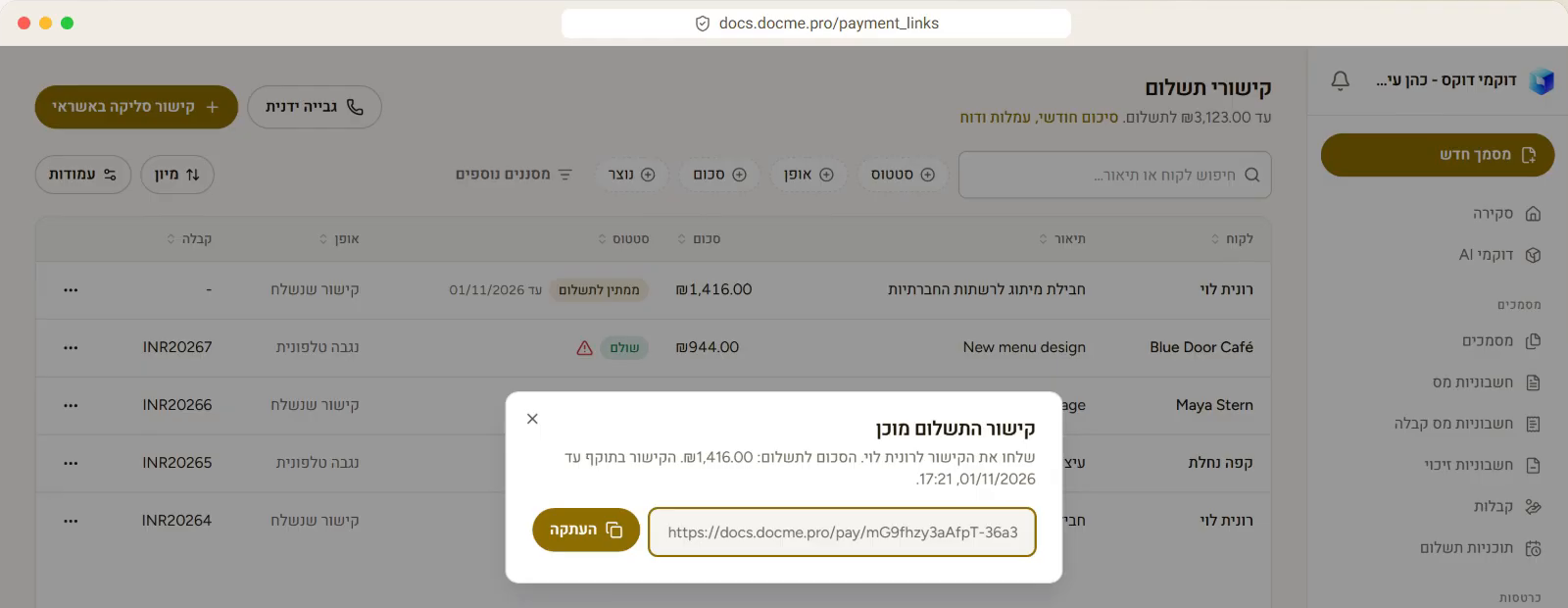
The Payment link ready window opens with the link, and you can click Copy to send it yourself. A link works for 7 days.
Add a new customer
The customer must have an email address, because that is where the receipt goes. Without one, you can't create the link.
- On a payment link: open the Customer dropdown and click New customer. This opens the full customer page, so anything already typed in the link form is lost. Save the customer, go back to Payment links and choose them.
- On a manual payment: in the same dropdown, click New customer and a short form opens on the same screen, asking for a name and an email. Phone and Business no. / ID are optional. Click Save customer and they are selected for you.
How the link reaches the customer
With Send to the customer automatically ticked, the link goes out 10 seconds after you create it, on every channel ticked on the customer's page. During those seconds you can click Cancel to stop it, or Send now to skip the wait.
- The channels come from Send documents automatically when issued by on the customer's page.
- If the customer has no channel ticked, nothing is sent. Copy the link and send it yourself.
- Telegram goes out only if your plan includes it. Without it, that channel is skipped.
- If you untick the box, nothing is sent. The choice is remembered for next time.
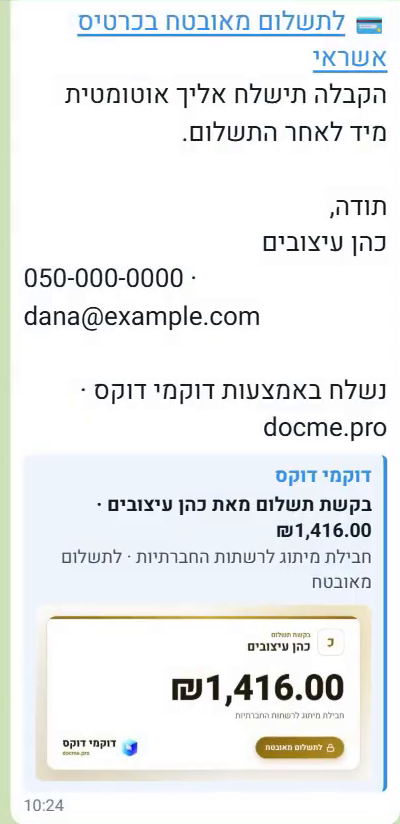
The customer gets a message with the business name, the description, the amount and a link to pay. Telegram also shows a preview with the amount, and the email has a button for secure payment.
What the customer does
- The customer opens the link and sees your business details, the description and the amount. They don't need an account.
- They type the card number, expiry and CVV. The cardholder's ID number isn't a required field. If Google Pay or Apple Pay is offered, they can use that instead.
- They click Pay with the amount shown on the button.
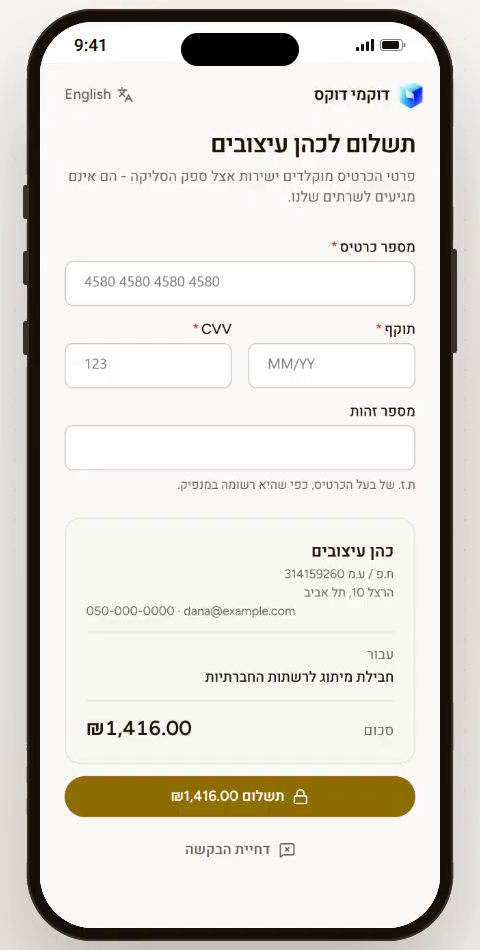
The Payment received page then appears, with a Download receipt button.
The customer can also click Reject this request and say why. You get their note by email, and in the row menu Review and reissue opens a new link with the details filled in, ready to correct.
What happens after payment
All of this happens without you doing anything:
- A tax invoice receipt (חשבונית מס קבלה) is issued in your books. An exempt business gets a plain receipt (קבלה), because it can't issue a tax invoice.
- The document is emailed to the customer.
- You get an email saying the payment came in.
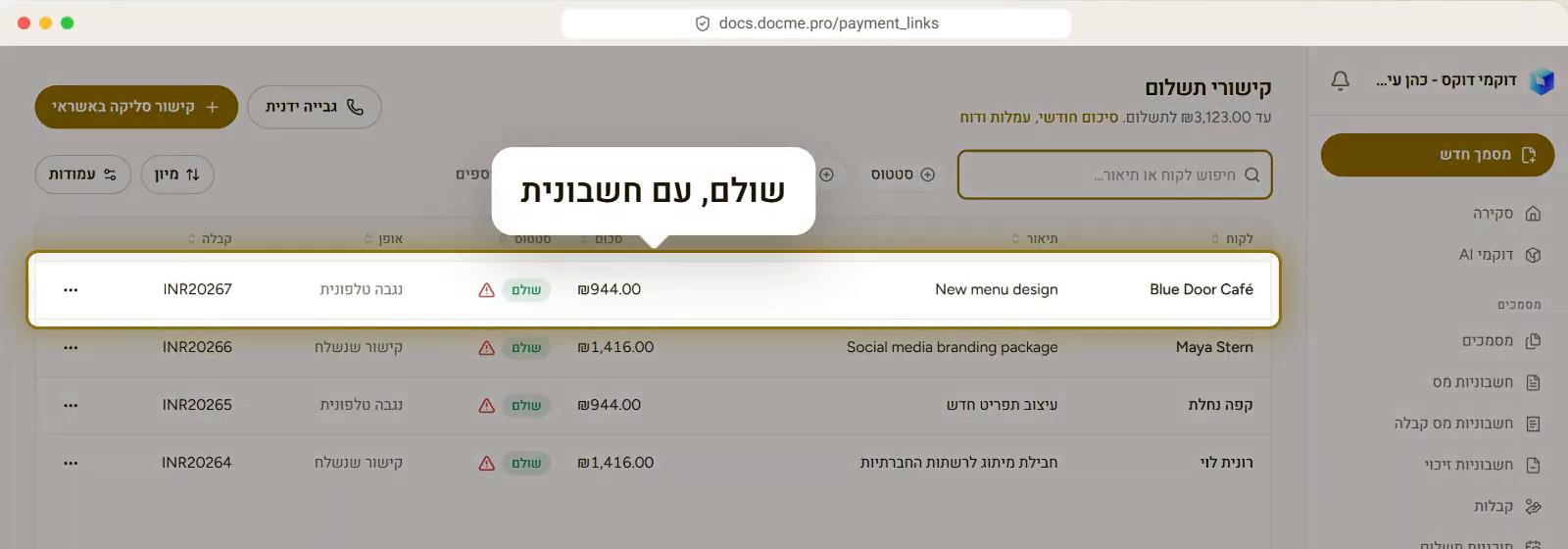
- In the Payment links list, the row shows Paid with the document number under Receipt. Click View receipt in the row menu to open it.
Take a card over the phone
- In the side menu, under Card payments, click Manual payment.
- Under Payment details, choose the customer, then type the amount and what it is for.
- Under Payments, keep One payment or choose another option.
- Click Continue to the card. The amount is now fixed. To change it, click Change these details.
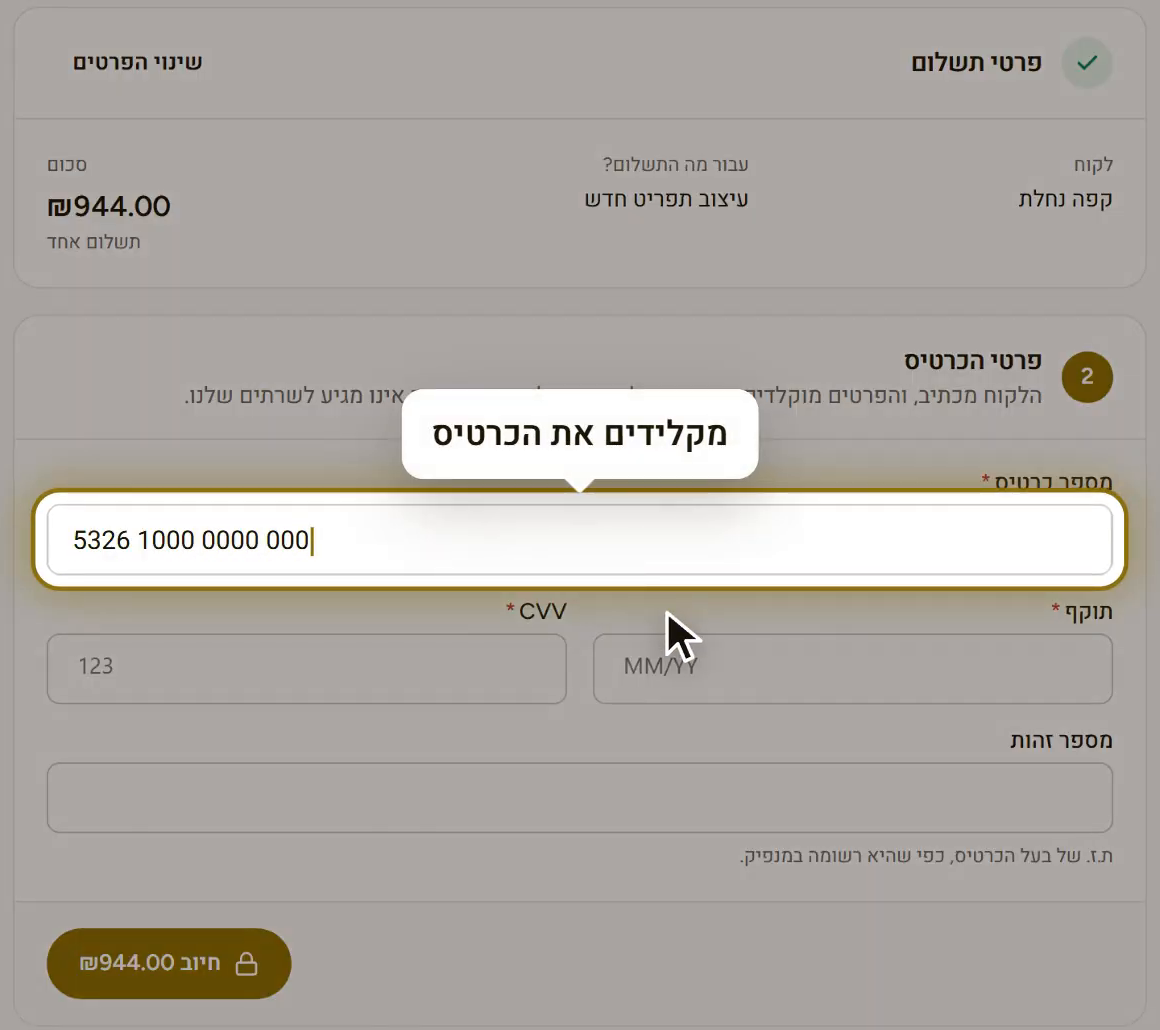
- Under Card details, type what the customer reads out: card number, expiry and CVV. The cardholder's ID number isn't a required field.
- Click Charge with the amount shown on the button.
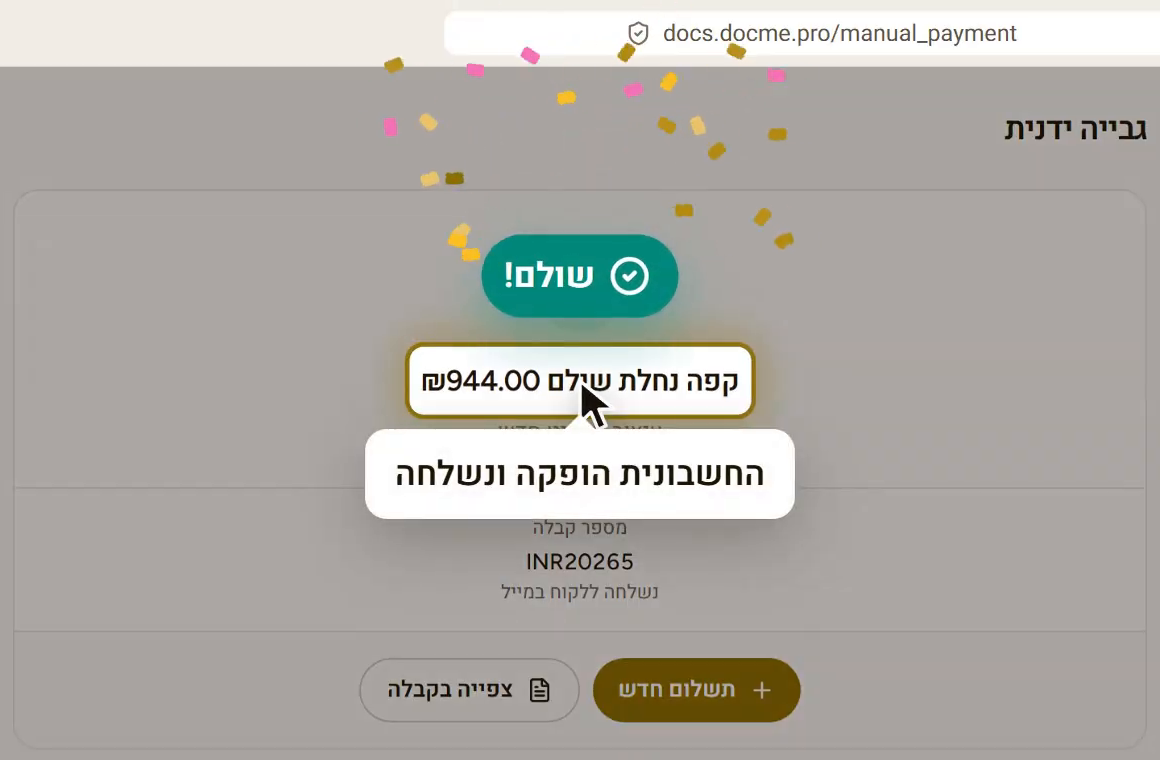
The screen confirms the payment and shows the receipt number. The document has already been emailed to the customer, and from here you can click New payment or View receipt. In the list, this row shows Taken by phone.
Installments and credit
Under Payments, you choose how the card is charged:
- One payment: the full amount at once.
- Installments: equal monthly payments on the card, with no interest. You choose 2 to 12 payments.
- Customer's choice: the customer picks how many payments, up to a limit you set. This works on a payment link only, because on the phone there is no page for them to choose on.
- Credit plan: the card company spreads 3 to 12 payments and may charge the customer interest. Only cards approved for credit can pay this way.
With Installments and Customer's choice, the money reaches you one installment a month. With Credit plan, the card company pays the full amount up front.
Fees and the monthly report
Card payments are collected on DocMe's payment account and passed on to you, less the fee. To see what each month came to, click Monthly summary, fees and report at the top of the Payment links screen. You can download a report there with each payment's fee and what you receive.
When something goes wrong
- Card declined: the link stays open and the row shows the reason. You get an email with a button to send the link again, or you can click Send the link again in the row menu. The customer can try another card.
- Expired: the 7 days are up. Click Reissue link in the row menu.
- You need to stop a link: click Cancel link in the row menu.
- A red warning triangle on a row: something went wrong with that payment. Hover over the triangle to see what.
- Paid, but no receipt: the money went through and the receipt will be retried automatically. You can also click Issue the receipt again in the row menu.
- The amount is refused because of an allocation number (מספר הקצאה): this receipt needs a number from the Tax Authority, and it issues with nobody there to approve it, so the payment is refused first. Add the customer's ח.פ / ע.מ / ת.ז on their page, and connect your business to the Tax Authority.
- We could not confirm this payment yet: don't charge the card again, because it may already have been charged. Click Check again after a moment.
- Card payments cannot be taken right now: the manual payment screen checks the payment service before it opens. Click Try again after a moment, before the customer reads out their card.