
Categories
Creating categories, pinning them to the top bar, and left/right-clicking them to show or hide files.
Categories are labels you attach to files, such as "Office supplies" or "To review". A file can have several. Categories you pin to the top bar become one-click filters: left-click shows only that category, right-click hides it.
What are categories?
- Each organization has its own categories, shared by all its customers' desktops.
- Some come built in (106, 867, Annual Report, Approvals, Reconciliations, SHUMA, Signatures). Built-in categories cannot be deleted.
- The number next to a category is how many of this customer's files carry it, archived files included.
Create a category from a file card
- On any file card, click Categories.
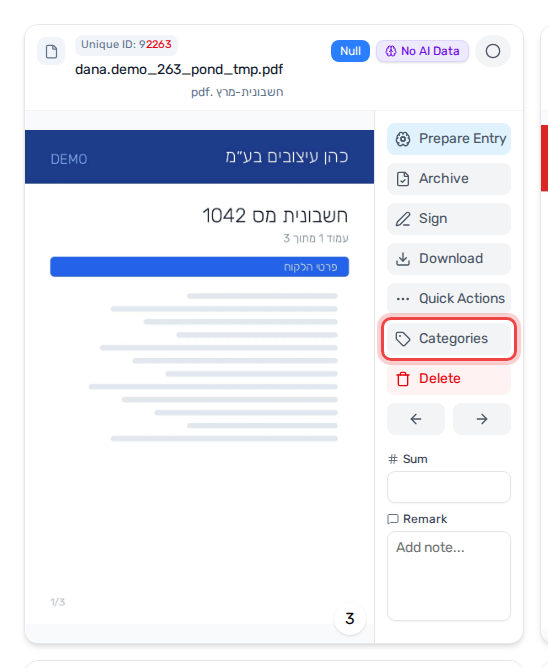
- The Manage Categories window opens. Click + New category.
- Type a name, pick a color, and tick Show in desktop top bar if you want it pinned to the top (see Pin a category to the top bar).
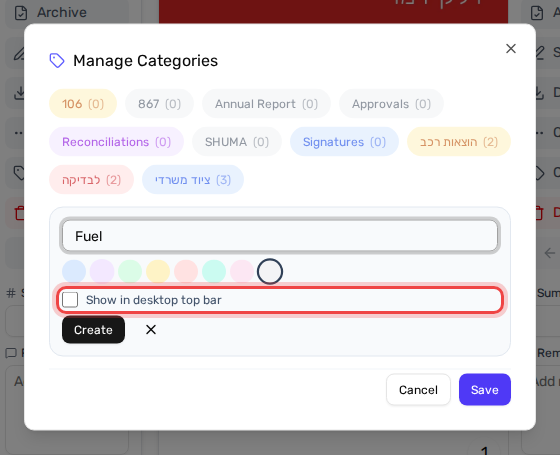
- Click Create (or press Enter). The new category is already ticked for this file.
- Click Save to attach it to the file.
Create a category in the Settings Editor
- Open Settings Editor from the menu and click the Categories card (or go to
/settings?tab=categories). - Click Add Category.
- Enter a Name, choose a Color, tick Show in desktop top bar if needed, and click Save.

Here you can also rename a category (pencil) or delete one (trash can).
Pin a category to the top bar
Pinning (appending) a category to the top bar means it gets a chip in the bar at the top of the desktop, so you can filter by it with one click. Categories that are not pinned still work, but only through the sidebar filters.
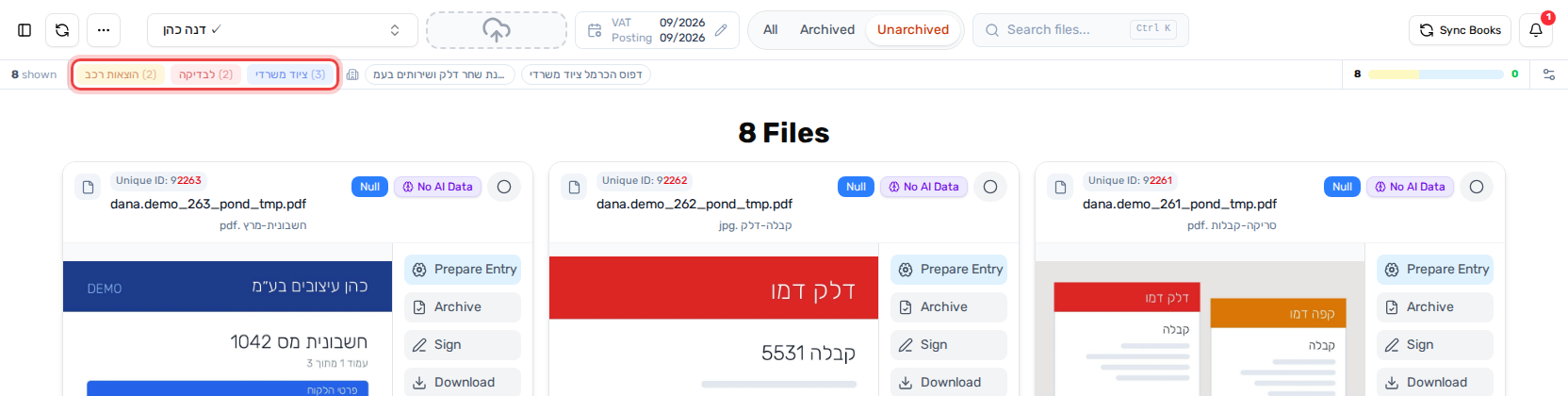
To pin or unpin existing categories:
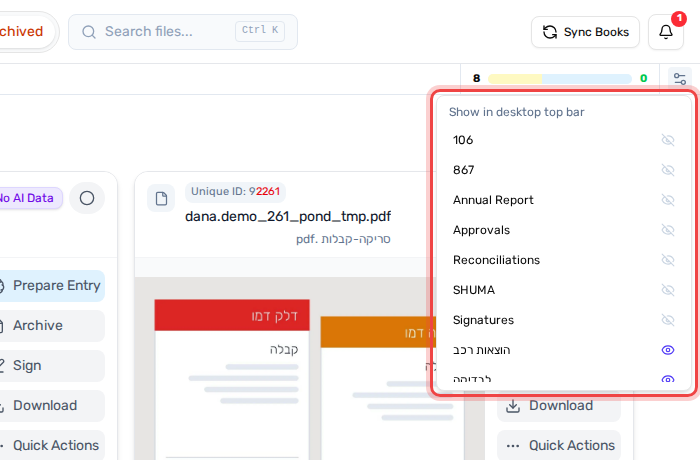
- Click the settings icon at the end of the top bar.
- Click a category in the Show in desktop top bar list. An open eye means it is pinned, a crossed eye means it is not.
Left-click: show only this category
Left-click a category chip to show only the files that have it. The chip gets a colored ring, and the counter shows how many files are shown and how many are hidden.
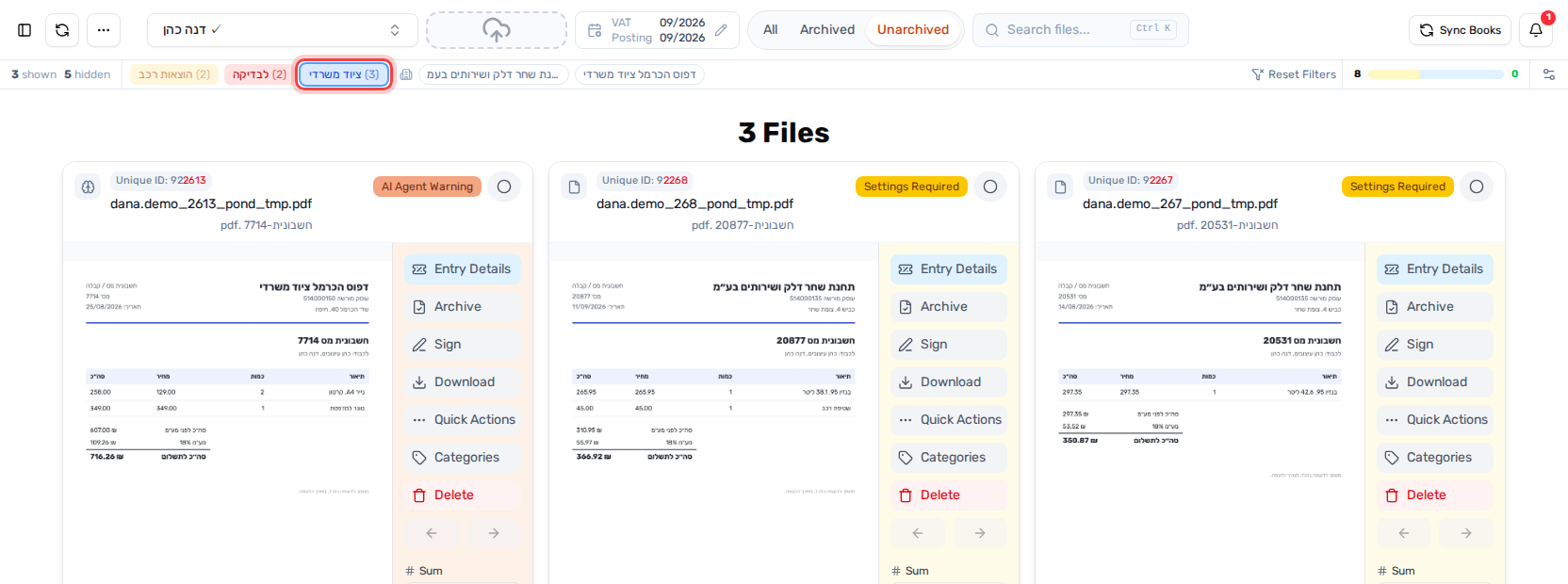
- Left-click more chips to add them. Files with any of the selected categories are shown.
- Left-click a selected chip again to remove it.
Right-click: hide this category
Right-click a category chip to show everything except the files that have it. The chip turns faded and struck through, with a red border.
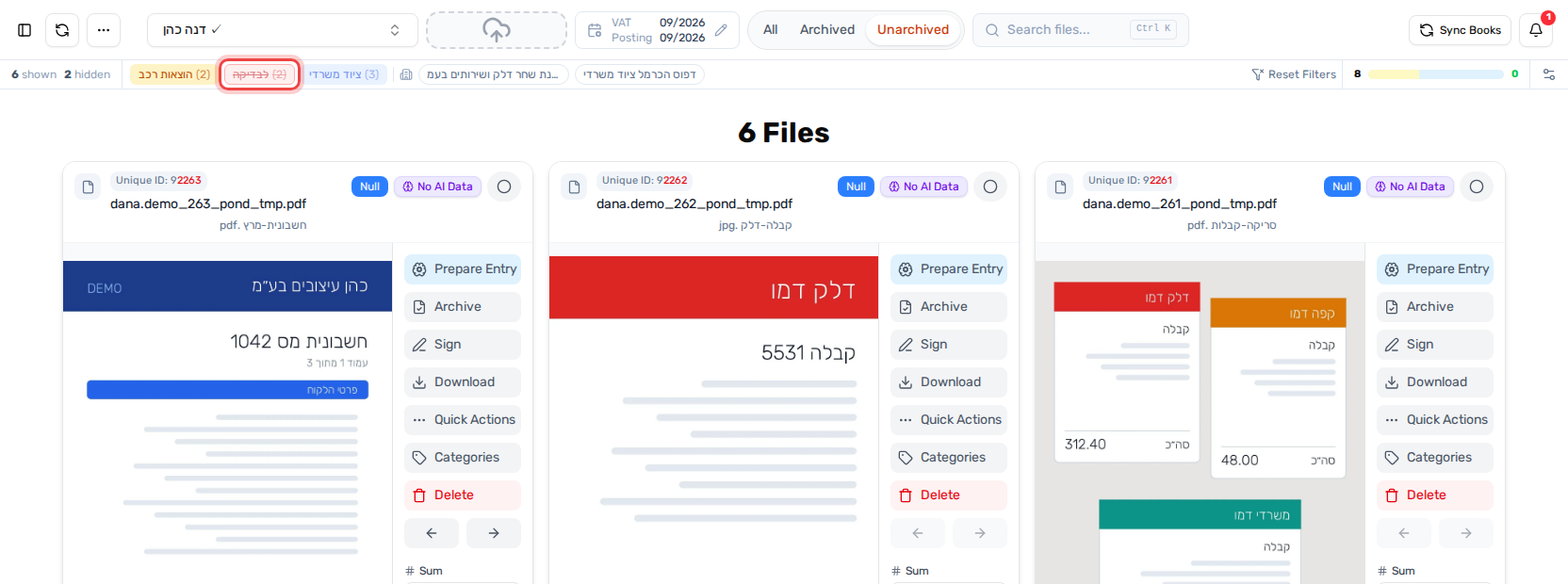
- Right-click the chip again to bring those files back.
Combining and clearing
- You can mix both: for example, left-click "Office supplies" and right-click "To review" to see office-supply files that are not waiting for review.
- A chip is either shown-only (ring), hidden (struck through) or neutral. Left-clicking a hidden chip switches it to shown-only, and right-clicking a shown-only chip switches it to hidden.
- Reset Filters in the top bar clears every chip at once. The sidebar's Clear categories clears only the category filter.