
The archive, search and filters
What is in the archive and what is not, switching views, quick month select, vendor filter, search and the sidebar filters.
The desktop shows a customer's documents as cards. This tutorial explains what the archive is, how to move between archived and unarchived files, and every way to narrow the desktop down to the files you need.
What is in the archive and what is not
- Not in the archive (Unarchived): files that are still being worked on. New uploads land here. This is the view the desktop opens with.
- In the archive (Archived): files someone marked as done by clicking Archive on the card. Archiving a file:
- stamps it with an archive month, the month and year chosen under Archive Date in the sidebar (the current month if nothing is chosen);
- saves an archived copy of the document;
- turns the card header green, and its button now reads Archived.
- Archiving is only for managers and employees. Customers do not see the button.
Switching between archived and unarchived files
At the top of the screen there are three buttons: All, Archived and Unarchived. Click one to switch. The desktop remembers your choice.
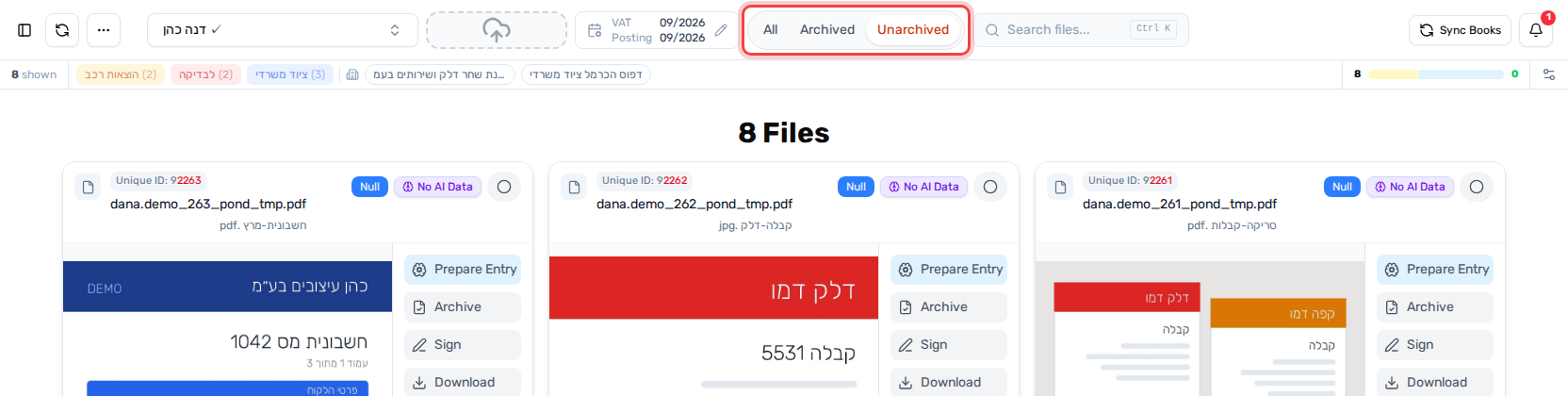
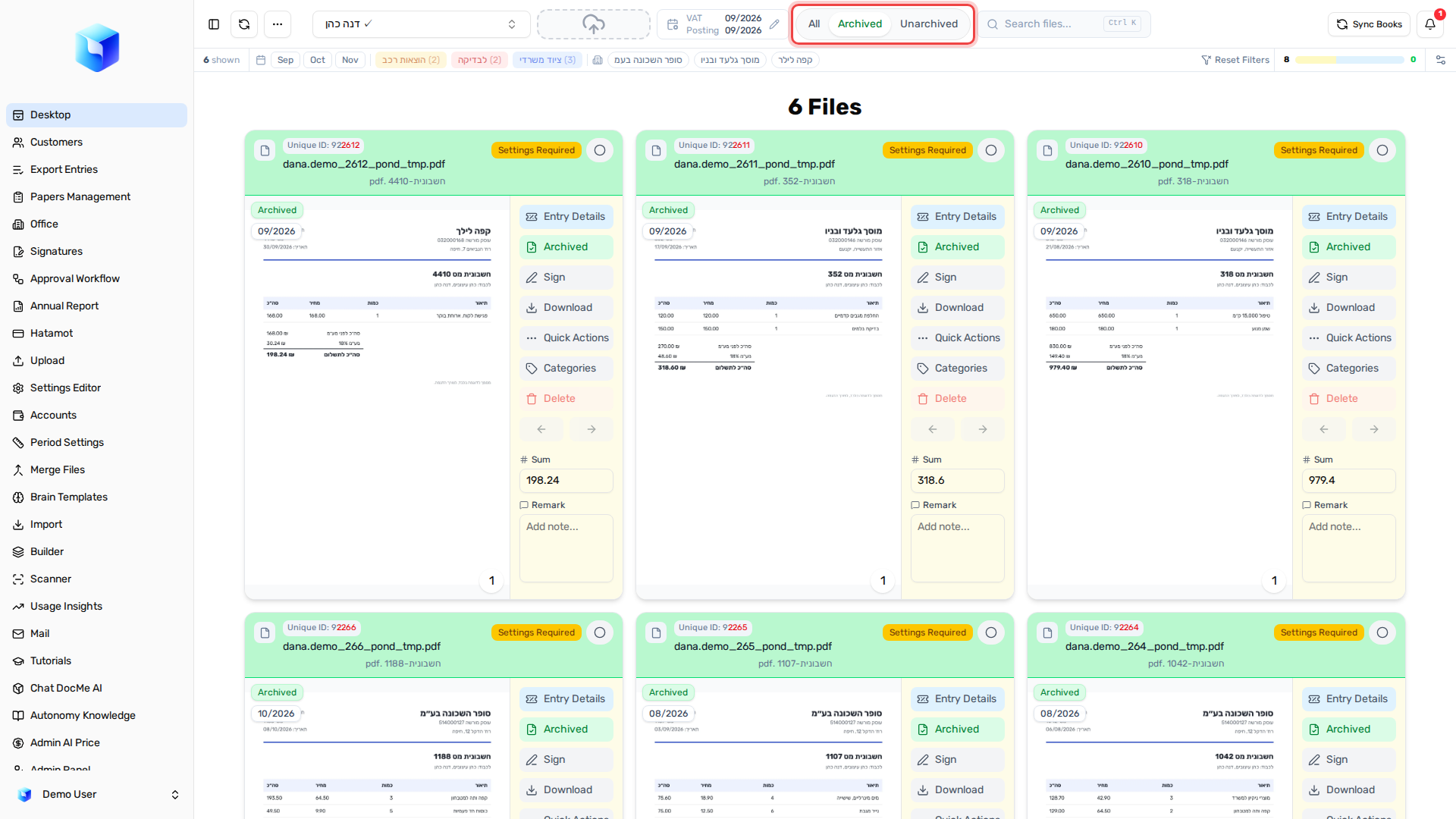
The Archived view also shows the month chips (see Quick select) and filters by archive month.
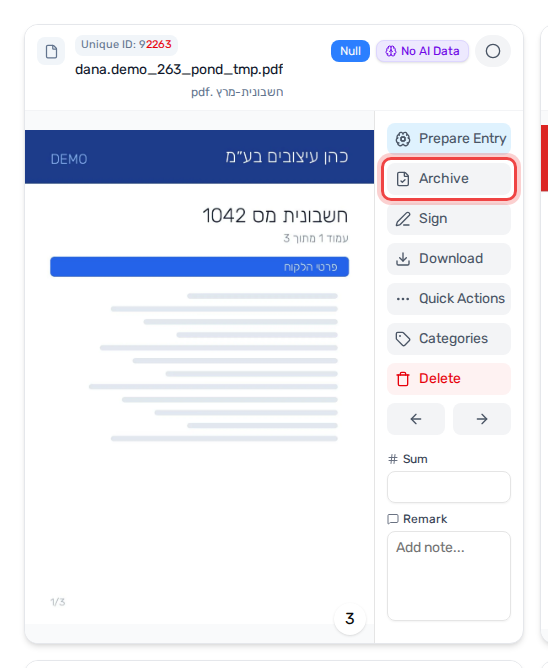
How to archive a file
- On the file's card, click Archive.
- The card turns green and moves out of the Unarchived view.
To archive several files at once:
- Select the files (see Selecting files quickly), then click Archive on one of them. Choose Archive all selected, or Just this file.
- Or open the … (Quick Actions) menu at the top and choose Archive - Selected Only. When nothing is selected it reads Archive - All and archives every unarchived file that is loaded. You are asked to confirm first.
Quick select: pick a reporting month in one click
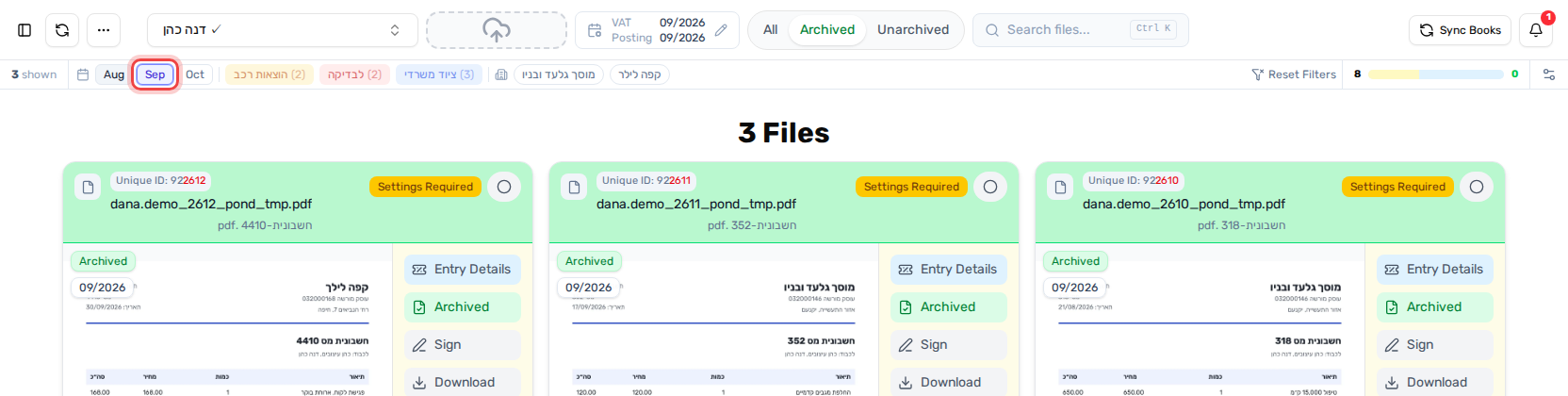
In the Archived view, the top bar starts with three month chips: the previous month, this month and next month.
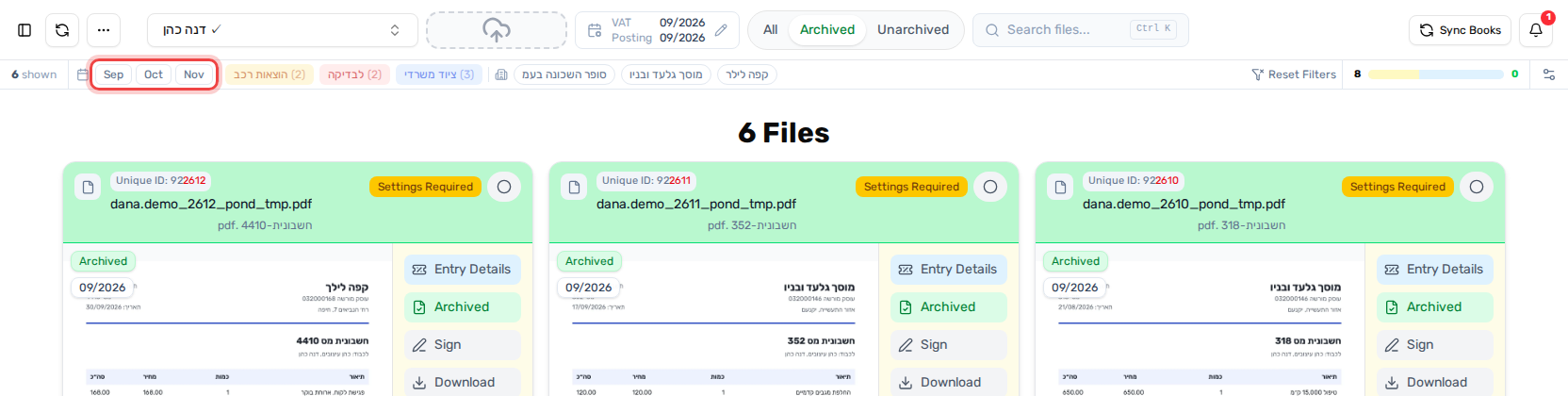
- Click a month to show only the files archived for that month.
- The chips re-center on the month you picked. Click the left chip again and again to step back one month at a time.
- Click the lit chip again to clear the month filter.
Filter by vendor
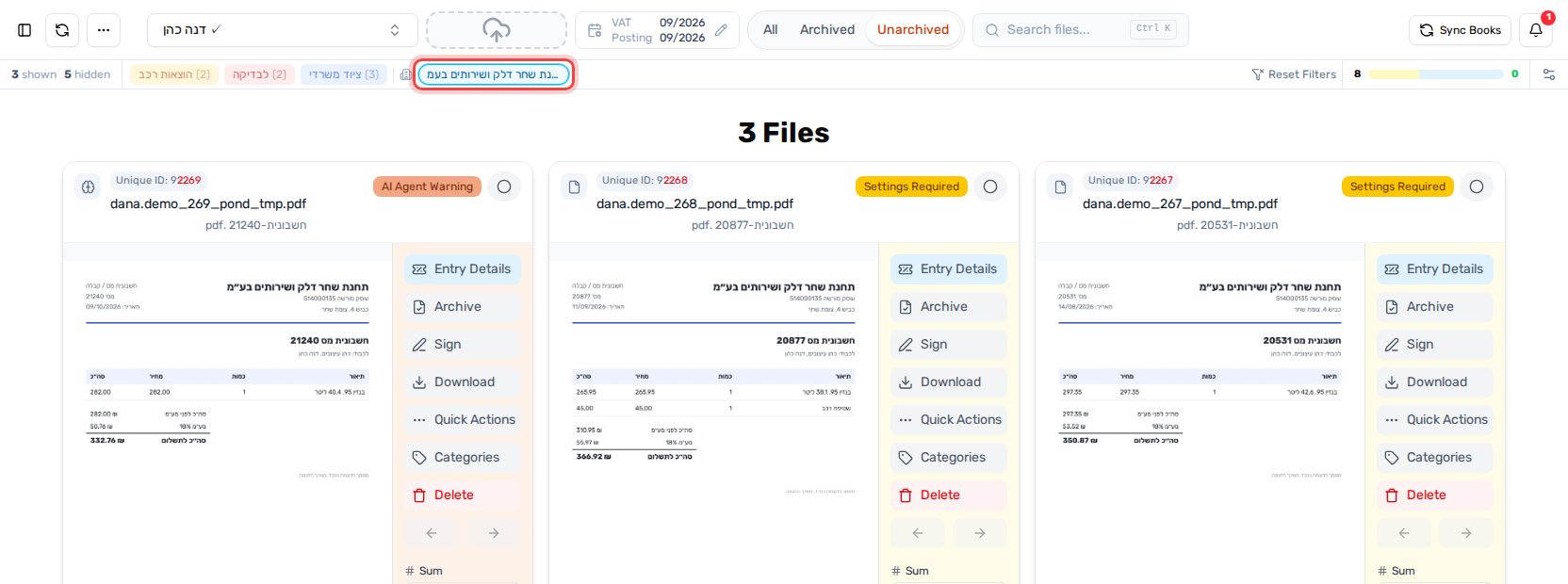
After the building icon in the top bar there are vendor (supplier) chips. They are built from the cards loaded on the desktop: up to 8 vendors, most frequent first.
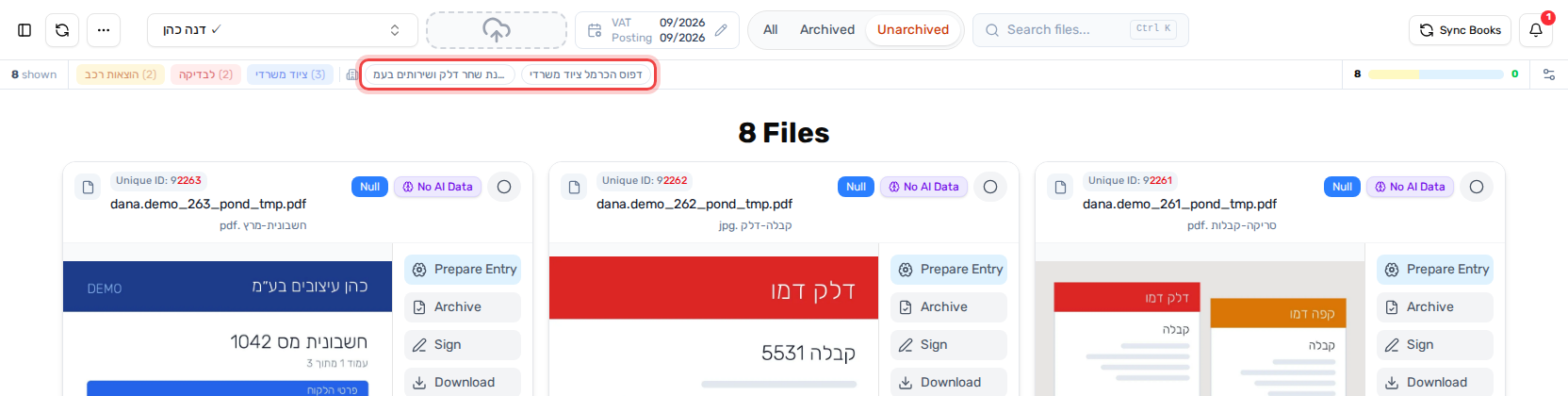
- Click a vendor to show only that vendor's files. The chip turns blue.
- Click more vendors to add them. Files from any of the selected vendors are shown.
- Click a selected vendor again to remove it.
The counter at the start of the bar shows how many files are shown and how many are hidden by the filter.
Search
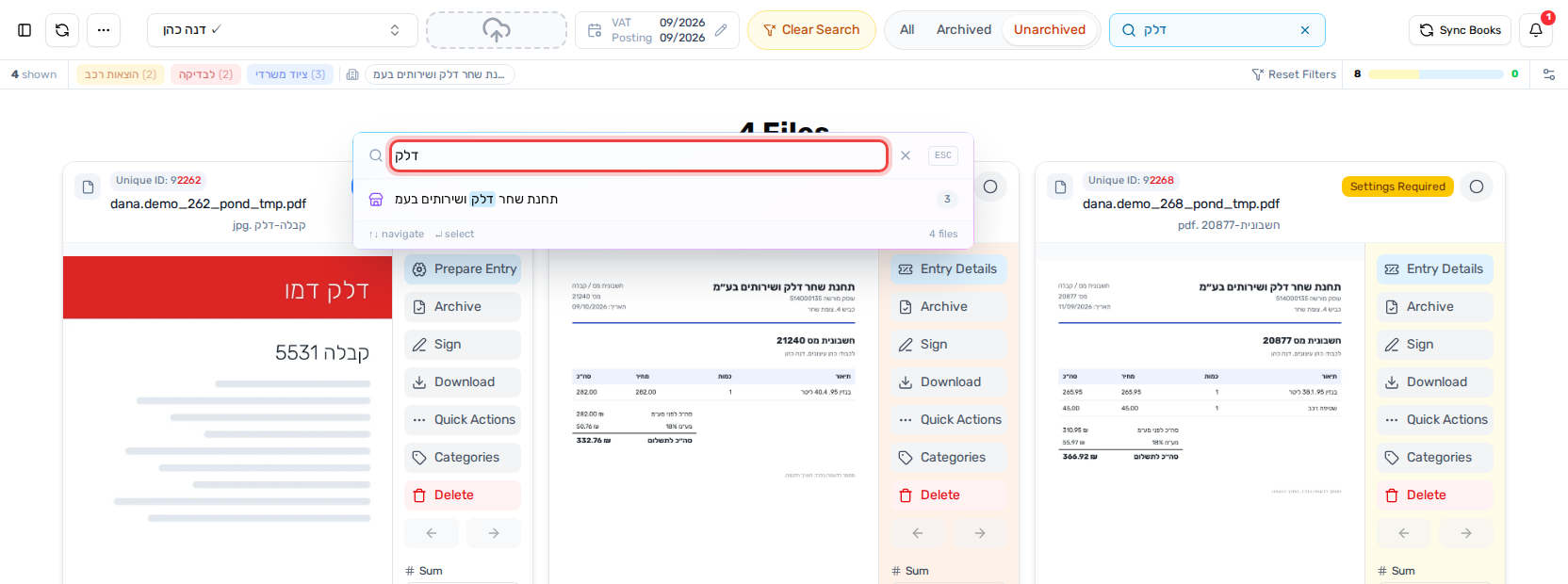
- Click Search files... at the top, or press Ctrl+K.
- Type a vendor, a file name, an ID, or any text that appears inside the document.
- The desktop filters as you type. The list under the box suggests matching vendors, files and recent searches.
- Esc closes the box and keeps the search. To clear it, click Clear Search at the top.
More filters in the sidebar
The sidebar holds the full filter panel under the menu. Scroll down to see it.
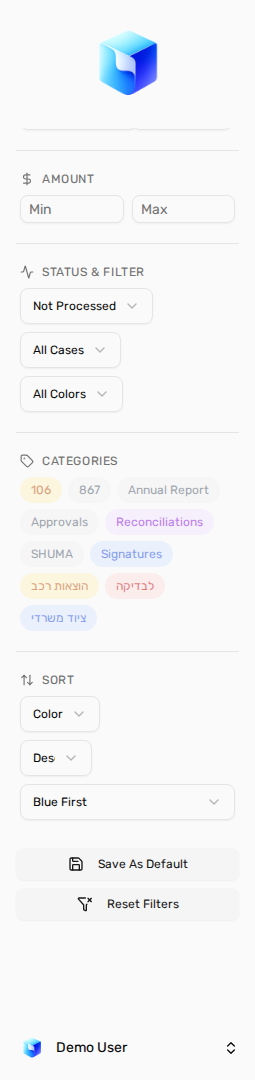
- Period / Archived Date: a year and a From/To month range. In the Archived view you can choose whether it filters by the reporting period or by the archive date.
- Amount: Min and Max total.
- Status & Filter: processing status, open or closed cases, and the card's color label (Approved, Review, Calc Error...).
- Categories: click categories to show only files that have them (see Categories).
- Sort: by color, vendor, date, amount, name or pages, ascending or descending.
- Save As Default keeps the current filters as your starting point. Reset Filters returns to the defaults.
Selecting files quickly
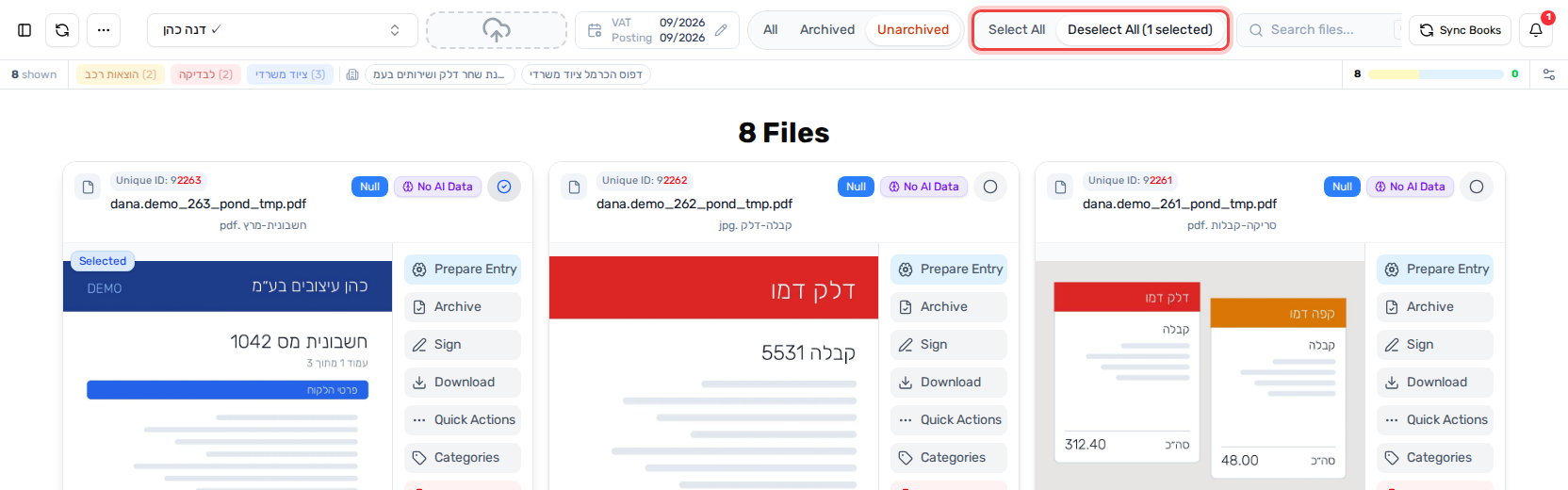
- Click the circle on a card's header to select it.
- Hold Shift and click another card's circle to select every card in between.
- Once something is selected, the top shows Select All and Deselect All. With 2 or more selected you can also put them in a Container.
Clearing all filters
When any filter is active, a Reset Filters button appears in the top bar. Click it to return to the default view in one step.