
Merging and splitting files
Merging several files into one, ordering pages by dragging, splitting a scan of several receipts into separate files, cropping and discarding unwanted pages.
The Merge Files page (the Document Organizer) lets you rearrange the pages of the files you selected: merge several files into one, put pages in order, split a scan that holds several receipts into separate files, and leave out pages you do not need.
Opening the page with your files
- On the desktop, select the files you want to work on: click the circle on each card's header (see Selecting files quickly).
- In the sidebar, click Merge Files.
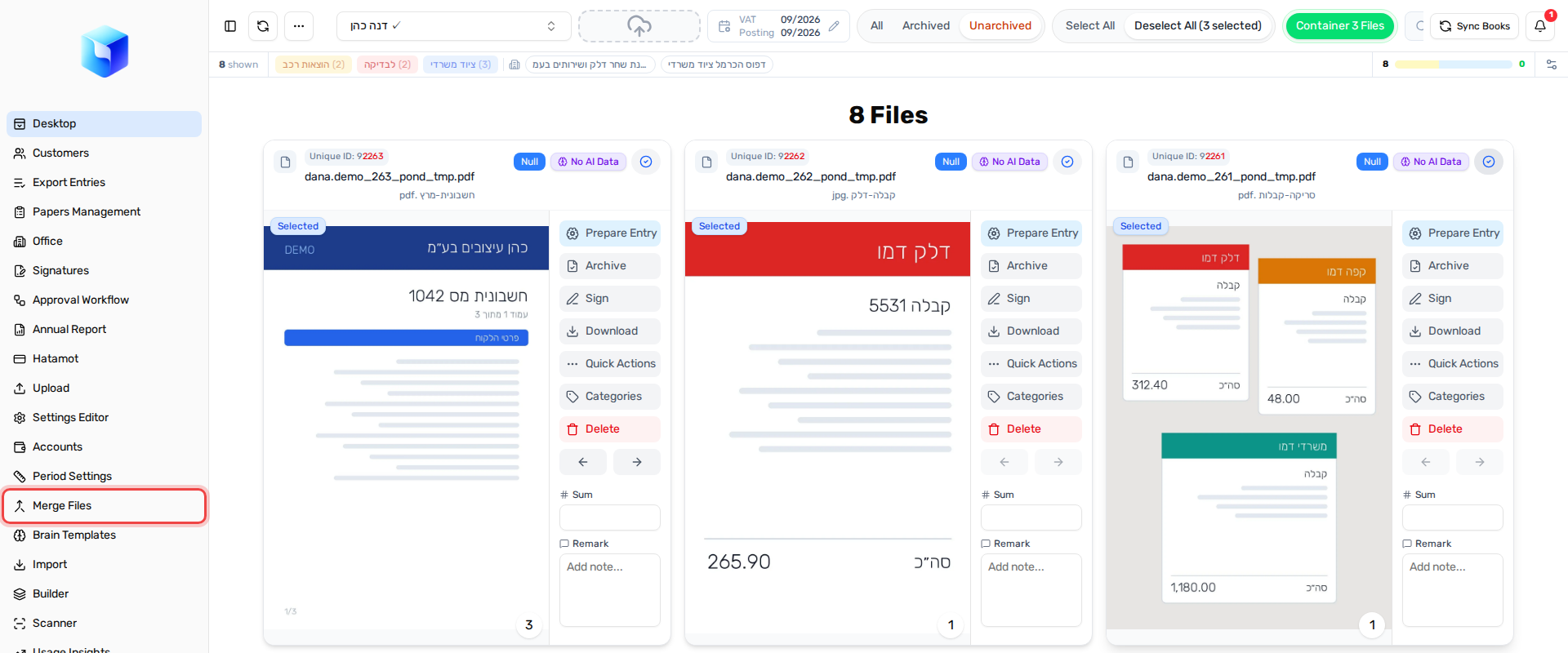
- Each selected file opens as its own row, called a document, with all its pages.
- One file is enough when you only want to split it or remove pages from it.
- If you open the page with nothing selected it shows No Files Selected. Go back to the desktop and select files first.
The organizer screen
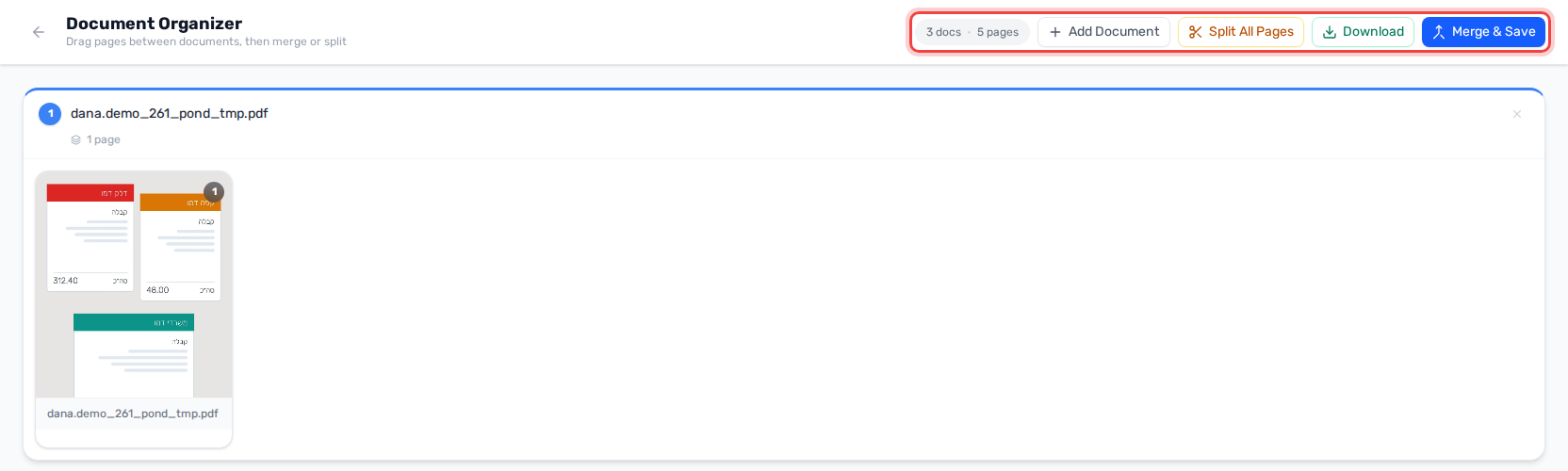
- Every row is one document that will be saved as one file. The counter at the top shows how many documents and pages there are.
- Click a document's name to rename it.
- The X at the end of a row removes the document. Its pages are not lost: they move to the first document. The last document cannot be removed.
- Add Document adds an empty row, ready to receive pages.
- Click a page to see it full size. Use the arrow keys to move between pages and Esc to close.
Ordering pages and moving them between documents
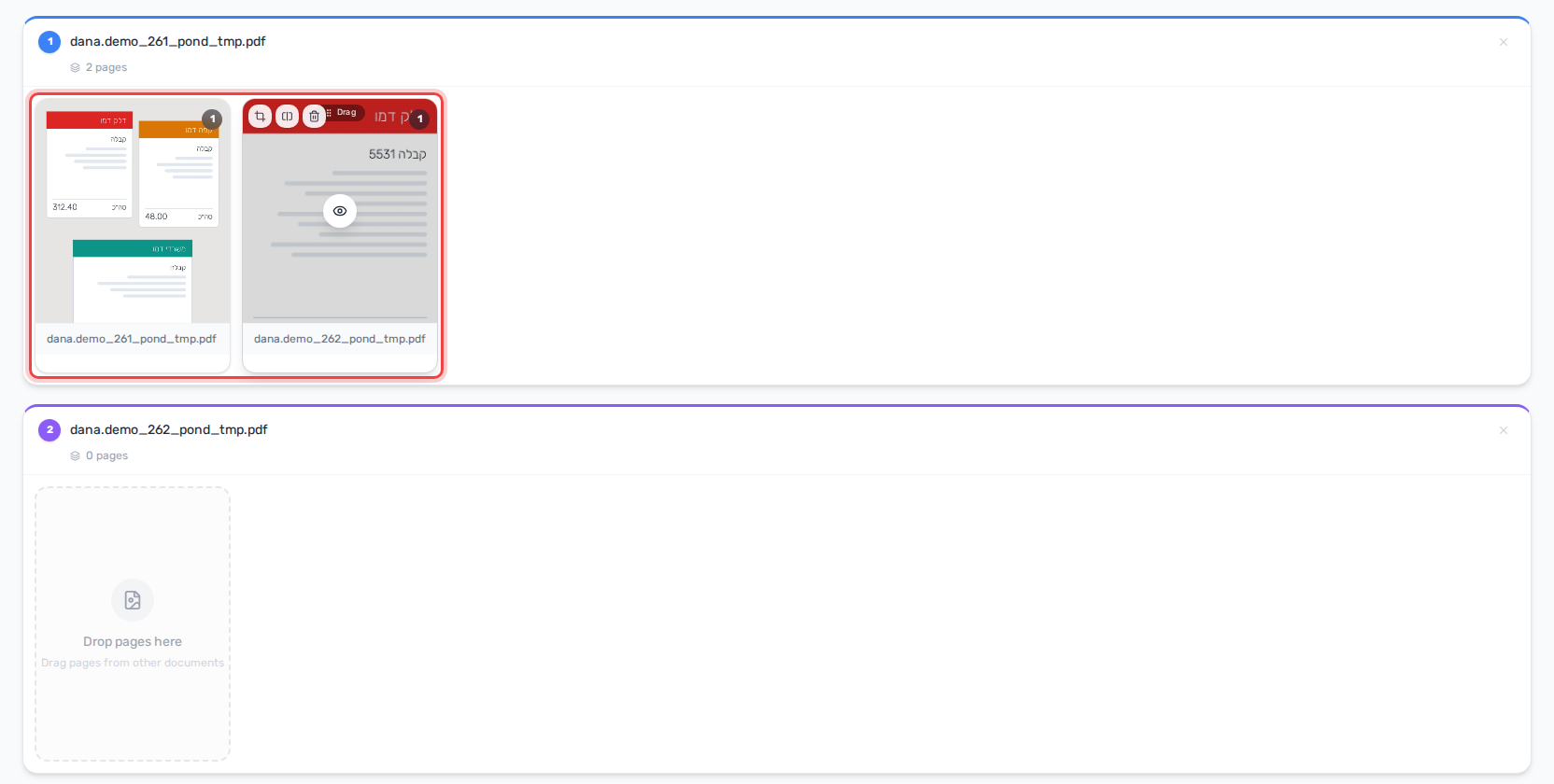
- Reorder: drag a page left or right inside its row.
- Move to another document: drag the page into another row. Drop it on a page to insert it at that position, or anywhere else in the row to add it at the end.
- A document left with no pages shows Drop pages here.
Splitting a page that holds several receipts
When one scanned page contains several documents (for example three receipts scanned together), split it into separate pages:
- Hover over the page. Three buttons appear in its top corner: crop, split and discard.
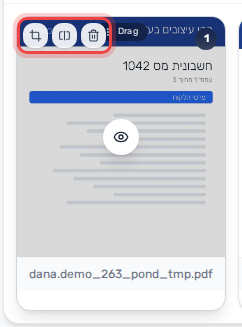
- Click Split Page (the middle button).
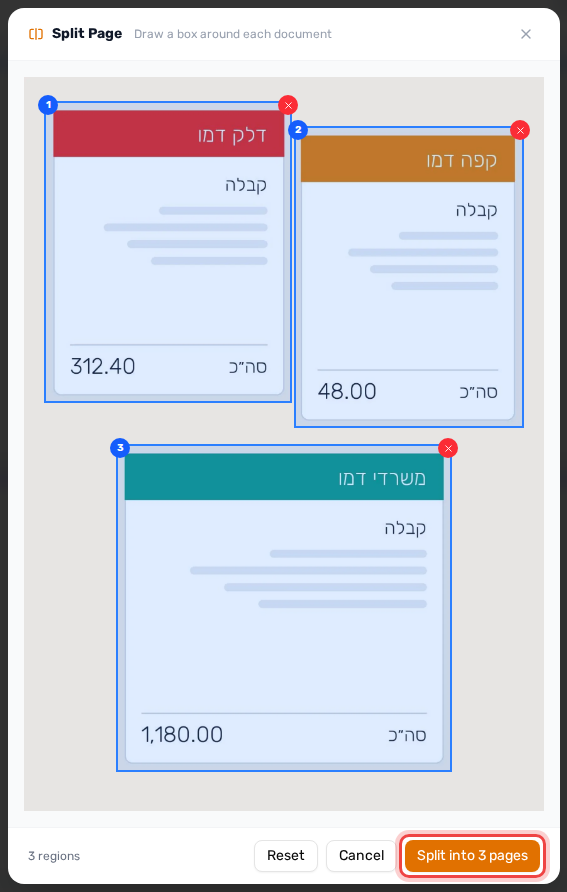
- Draw a box around each document with the mouse. The boxes are numbered. The red x on a box removes it, and Reset removes them all.
- Click Split into 3 pages (the number matches the boxes you drew).
The page is replaced by one page per box, each marked Split.
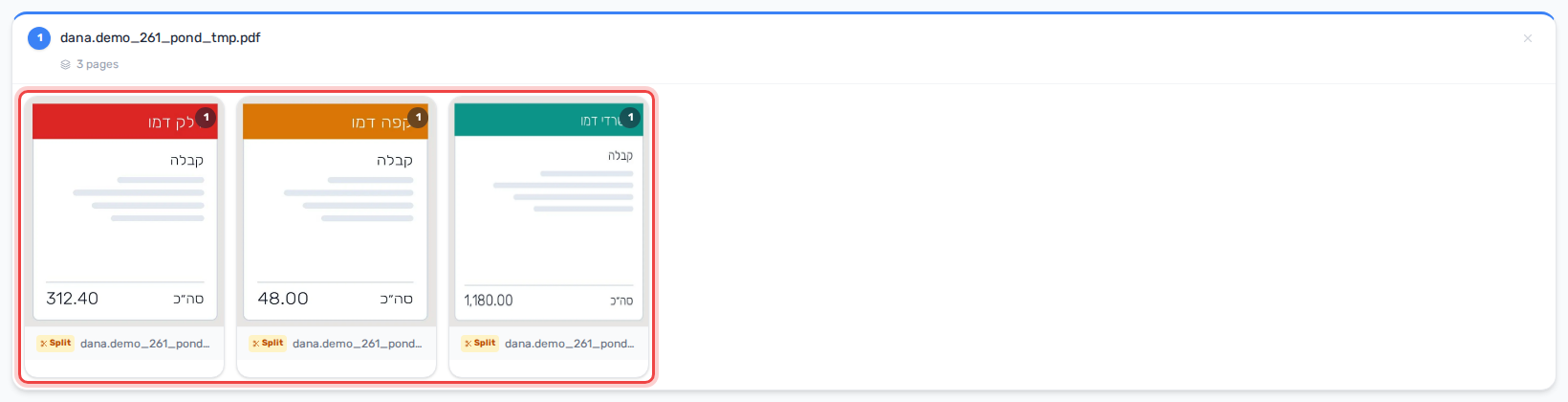
- To get each receipt as its own file, drag each split page into its own document (use Add Document), or click Split All Pages. Both are covered in Saving.
Cropping a page
To cut away margins or an unneeded part of a page:
- Hover over the page and click Crop Image (the first button).
- Draw one box around the area to keep.
- Click Crop & Save and confirm.
Leaving pages out (discard)
Blank pages, ads or duplicates can be left out of the result:
- Hover over the page and click Discard page (the trash button), or drag the page to the Discard area at the bottom of the screen.
- Discarded pages wait in the Discard area. Hover over one and click Restore to send it back to the first document, or click Restore all.

- When you save, you are asked to confirm that the discarded pages will not be included.
- A file that had all its pages discarded is deleted when you save, unless it is archived.
Saving: Merge & Save, Split All Pages, Download
The buttons at the top of the screen decide what happens:
- Merge & Save: every document becomes one new file, with its pages in the order you set. The original files are replaced by the new ones and you are returned to the desktop.
- Split All Pages: every page becomes a separate file, whatever document it is in. You are asked to confirm first.
- Download: downloads the documents as PDF (a zip when there are several) without changing anything in the system.
Good to know:
- What the AI read on a page stays with it when the page is moved, merged or split into its own file. Pages cut out with Split Page are new pages and start without it.
- If one of the files has an approved entry, you are warned that the entry will be canceled, and you can stop or continue.
- Files that are out for signature (Smart Sign) cannot be merged or split.