
Moving from Hashavshevet: accounts, transaction types and past entries
Export three Hashavshevet reports to Excel (account index, transaction type index and short transaction search), import them into DocMe with the built-in templates, then approve and archive the past entries.
How to move a customer from Hashavshevet to DocMe with three Excel files: the accounts, the transaction types (called Sort Codes in DocMe) and the past entries.
The process at a glance
- Export three Hashavshevet reports to Excel: אינדקס חשבונות (account index), אינדקס סוגי תנועה (transaction type index) and איתור תנועות מקוצר (short transaction search).
- Import them into DocMe in this order: accounts first, then sort codes, and the entries last. Entries point to accounts and sort codes, so those must exist before them.
- Approve the past entries and move them to the archive.
Hashavshevet only has a Hebrew interface, so its labels below are in Hebrew, with a translation in brackets.
Export the account index from Hashavshevet
- Open Hashavshevet on the company you are moving.
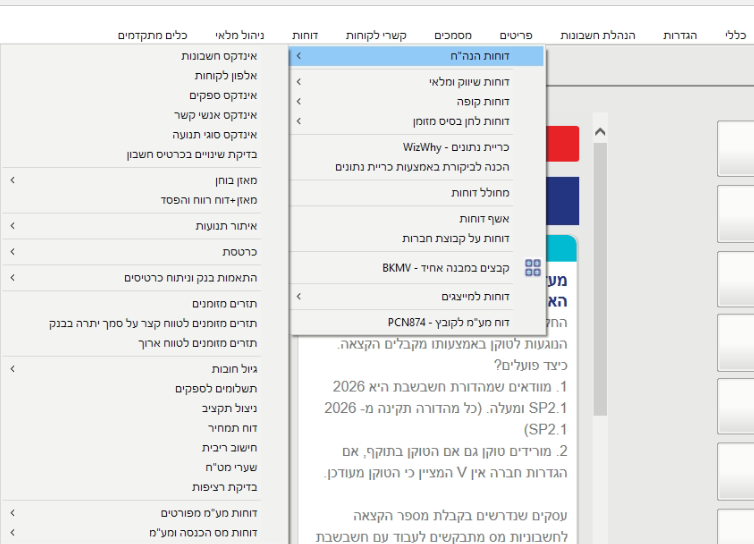
- In the top menu click דוחות (Reports) and hover דוחות הנה"ח (bookkeeping reports). The list of reports opens.
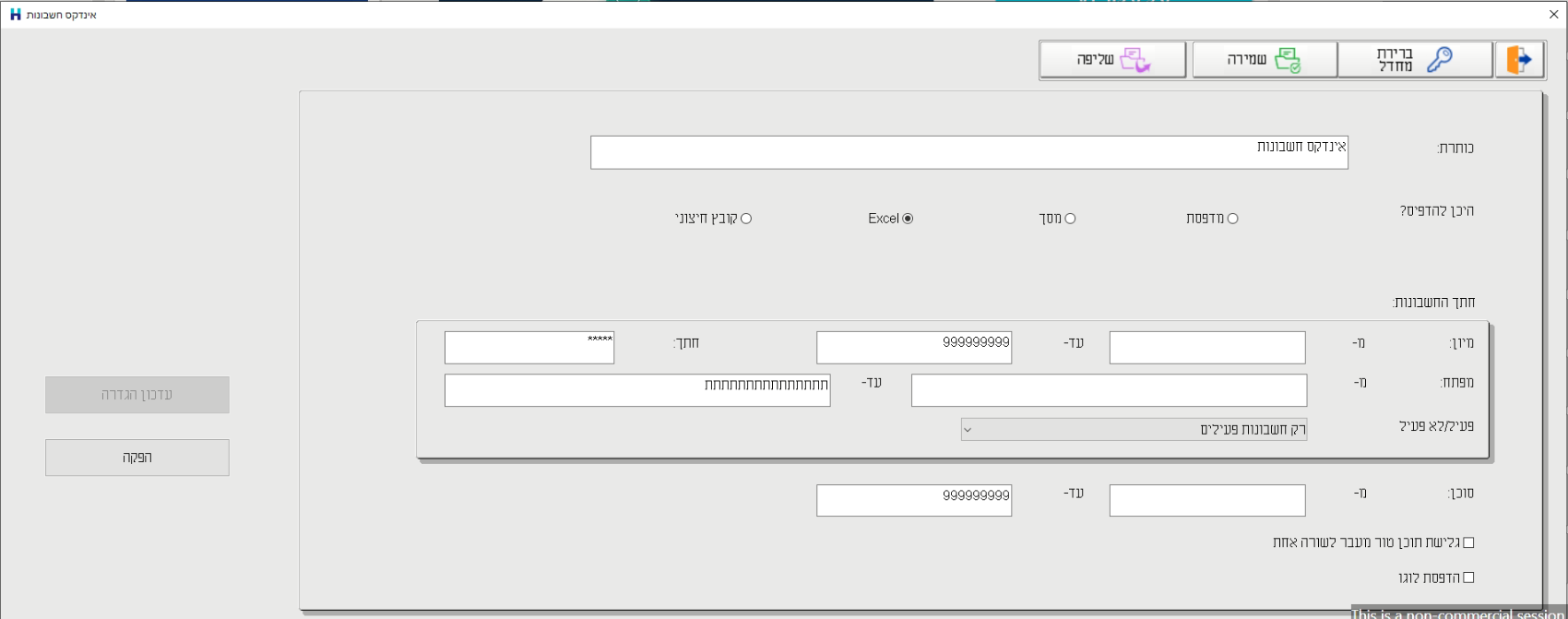
- Click אינדקס חשבונות (account index).
- On the report screen, next to היכן להדפיס? (where to print?), choose Excel.
- Click הפקה (produce) and save the file that opens in Excel.
Export the transaction type index
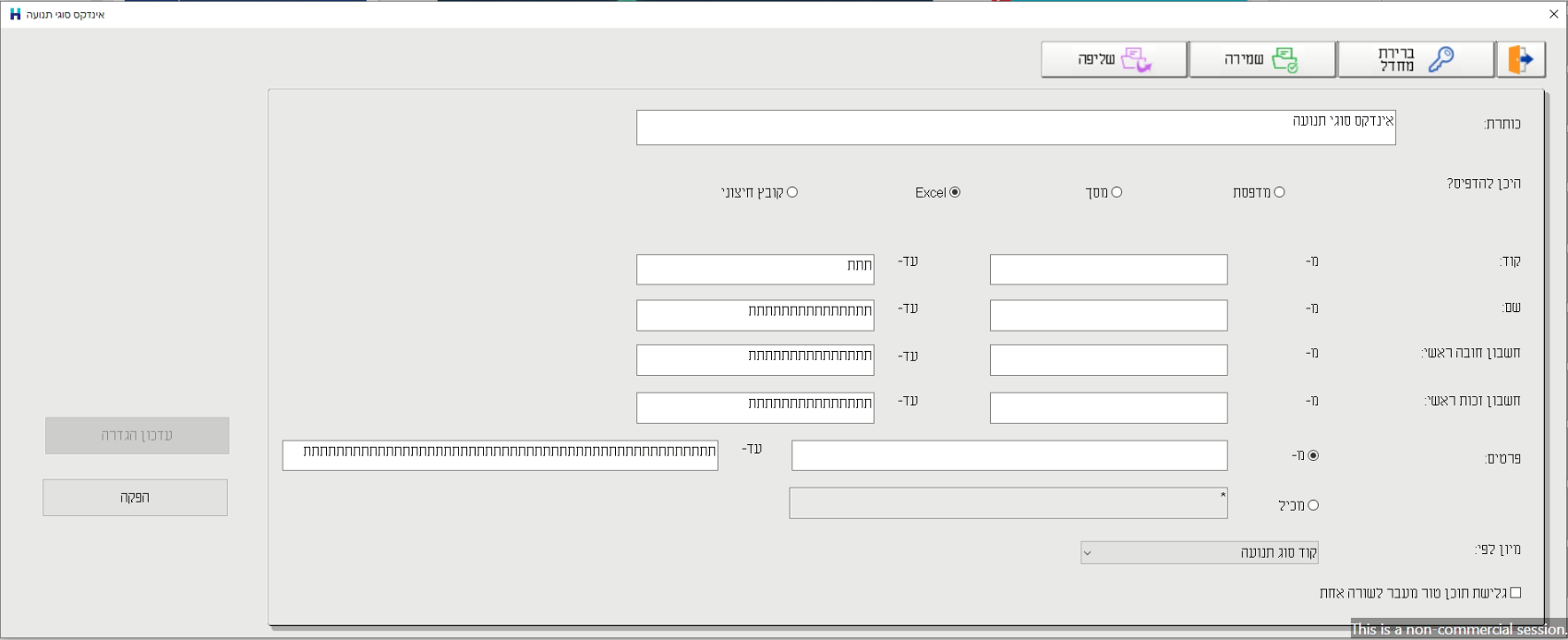
- Again דוחות → דוחות הנה"ח, and this time אינדקס סוגי תנועה (transaction type index).
- Next to היכן להדפיס? choose Excel.
- Click הפקה and save the second file.
Export the past entries
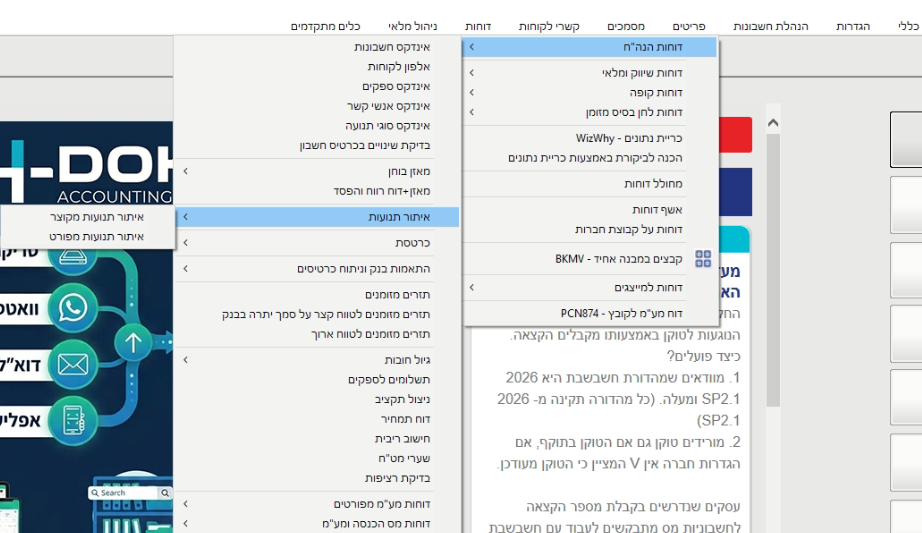
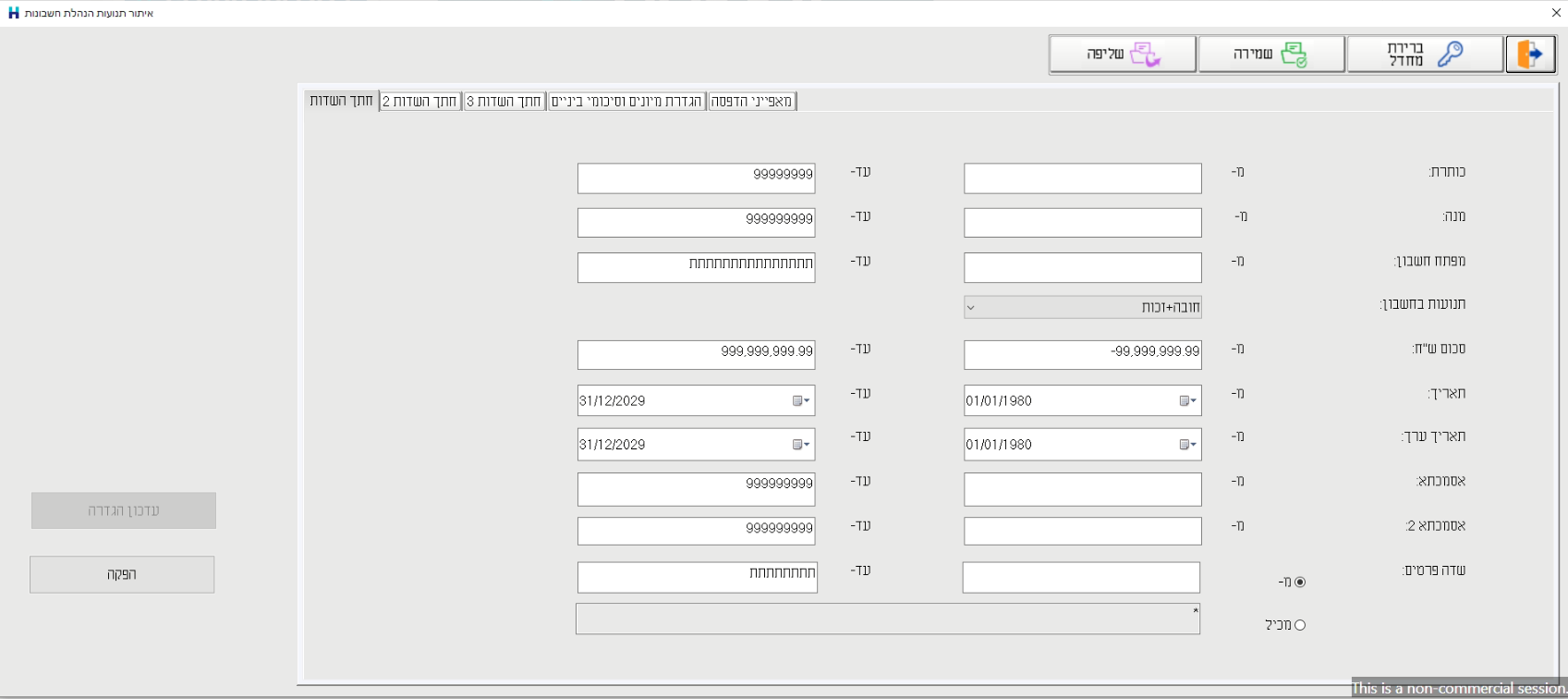
- דוחות → דוחות הנה"ח → איתור תנועות (transaction search), and choose איתור תנועות מקוצר (short transaction search). In this report every entry is one row.
- On the first tab, חתך השדות (field filter), you can narrow the date range, for example to the last two years.
- Switch to the מאפייני הדפסה (print settings) tab and choose Excel next to היכן להדפיס?.
- Click הפקה and save the third file.
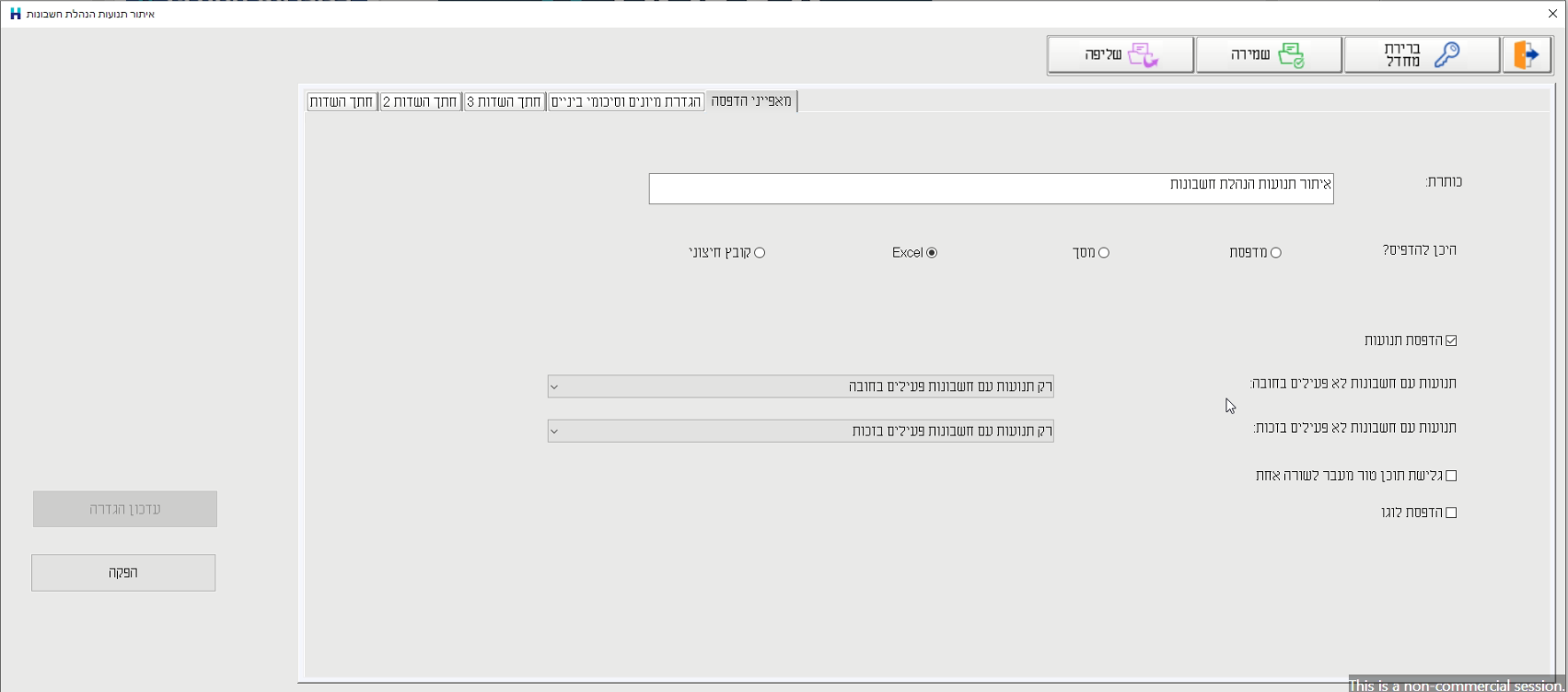
You now have all three files.
Open the import screen in DocMe
- Choose the customer in the customer picker in the top bar. Accounts and entries are imported into this customer.
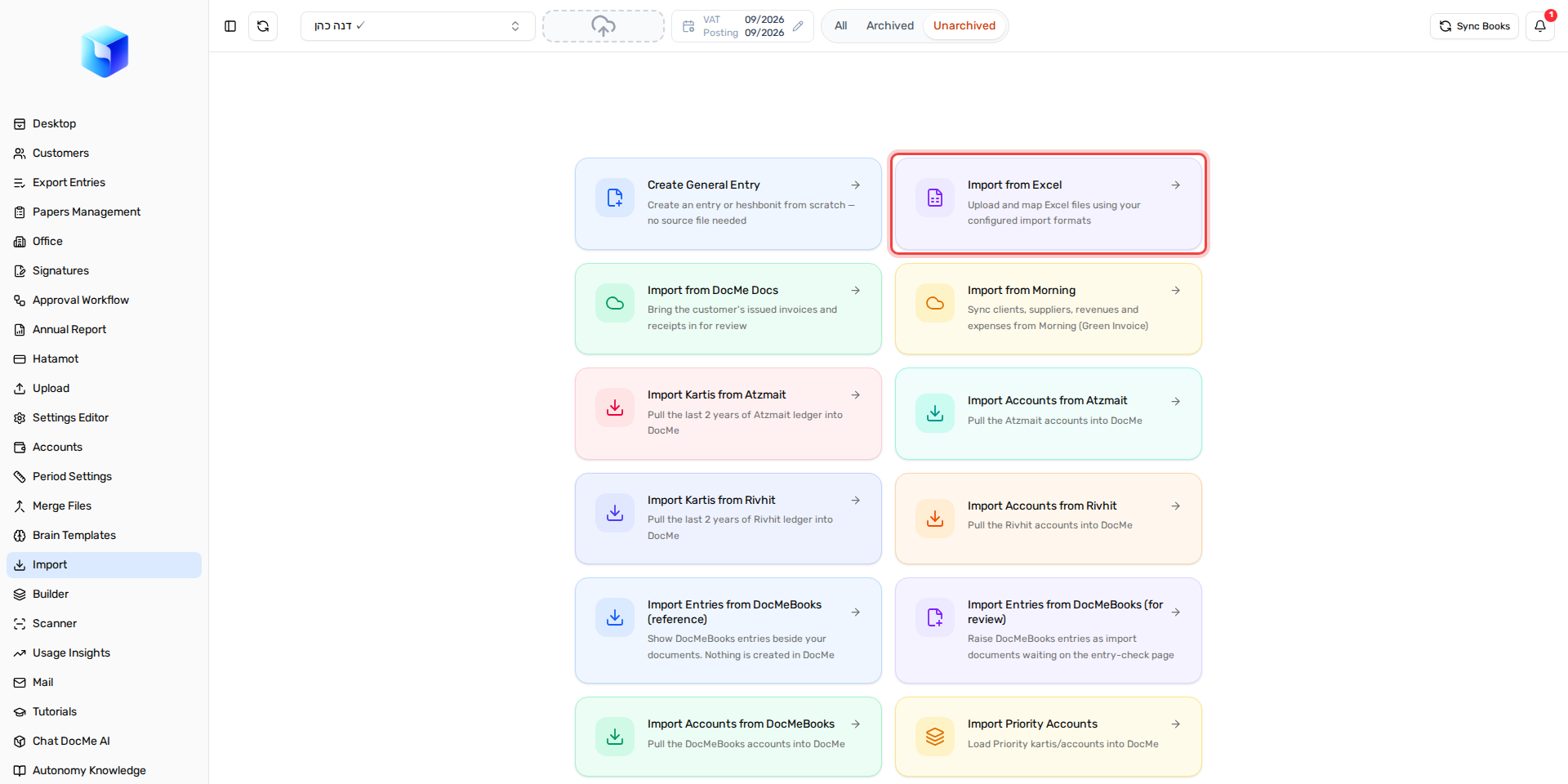
- In the sidebar, open Import.
- Click the Import from Excel card.
The Import window opens with three tabs: Entries, Accounts and Sort Codes. On each tab you choose 1 · Template, upload 2 · File, check 3 · Preview, and click the import button.
- The Hashavshevet templates are Built-in templates. If you don't see them, check that the Built-in templates switch at the top of the window is on.
- Drag the file into the frame, or click the frame and pick it.
Import the accounts
- Switch to the Accounts tab.
- Choose the Hashavshevet - חשבונות template.
- Upload the account index file.
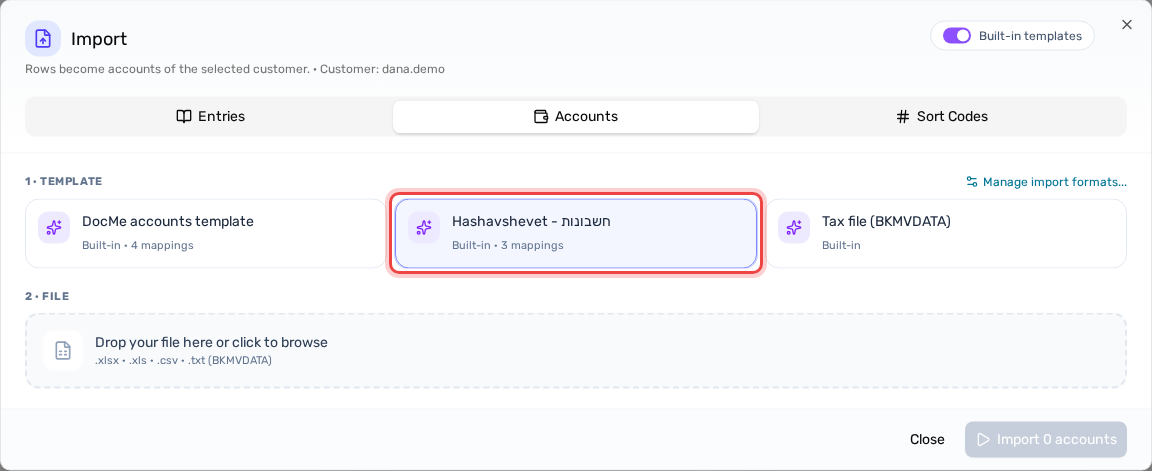
- The preview lists every account with its Account Code, Account Name and Account Type. The template sets the account type from the account's Hashavshevet sort code (קוד מיון):
- Under 100: Equity
- 100 to 299: Asset
- 300 to 499: Liability
- 500 to 599: Revenue
- 600 to 799: Expense COGS
- 800 and up: Expense G&A
- New accounts are checked. Click Import 18 accounts (the number is how many rows are checked), and the accounts are created for the customer.
- An account the customer already has (same code or same name) shows Already exists and is not checked. Check it only if you want to overwrite it; it then shows Will overwrite.
- If your office numbers the sort codes differently, save a copy of the template and adjust it under Manage import formats....
Import the transaction types as sort codes
- Switch to the Sort Codes tab.
- Choose the Hashavshevet - סוגי תנועה template.
- Upload the transaction type index file.
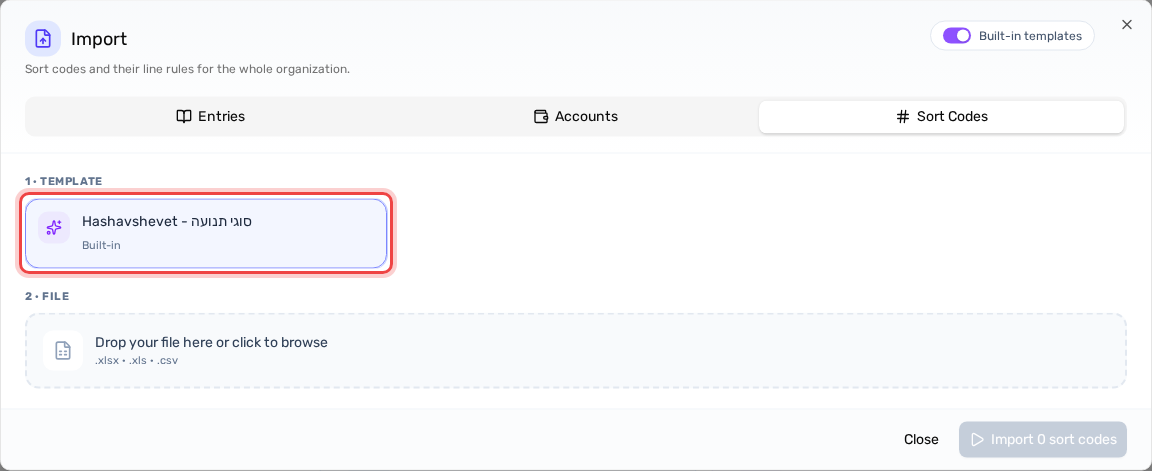
- Every code comes with its Line Rules: which account each part goes to on the debit and credit side, for example the part that goes to VAT.
- Click Import 6 sort codes (the number is how many codes are checked). Only the checked codes are imported.
Import the past entries
- Switch to the Entries tab.
- Choose the Hashavshevet - כרטסת template.
- Upload the transaction search file.
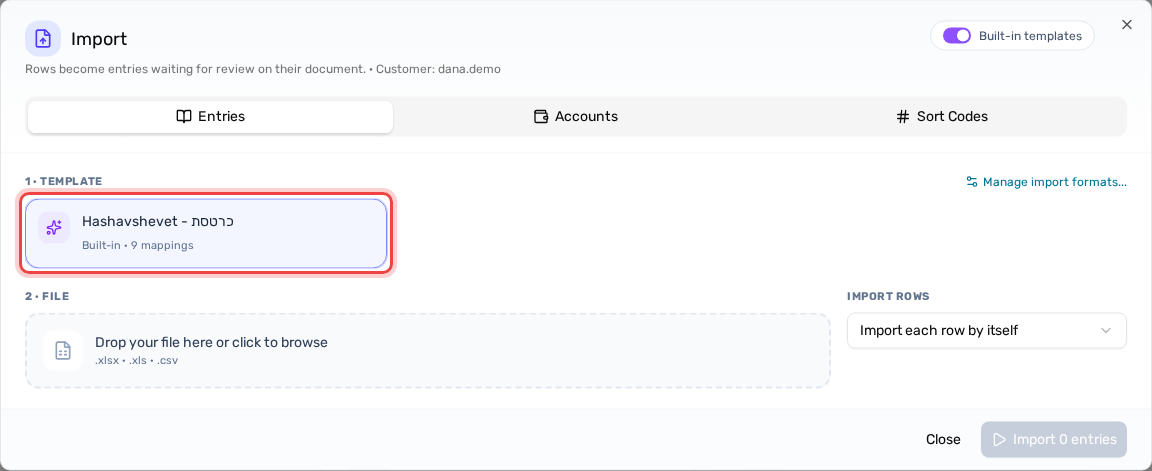
- In the preview every row is an entry: date, reference, sort code, amount, and the debit and credit accounts.
- Click Import 10 entries (the number is how many rows are checked).
- The entries do not go straight into the books. They wait for review on the desktop, one document per month.
- Under Import Rows you can choose Import each row by itself (the default), or Group same sort, credit and debit codes to join such rows into one entry per month.
Approve the past entries and archive them
- On the desktop, on the card of the first document, click Entry Details.
- Everything is already filled in from the file: sort code, accounts, dates and amount. Check that the entry is balanced.
- Click Save Changes. That is the approval. You cannot save while the entry is not balanced.
- DocMe moves on to the next document by itself. Approve it too, and so on until the last document.
- On the desktop every document now shows Entry Approved. Click Archive on each card (see How to archive a file).
- The documents are kept on the Archived tab, as history for the future (see Switching between archived and unarchived files).